My 3 Easy Best Ways To Use Copilot At Work
If you’ve never used an AI tool, like Microsoft Copilot, before, opening this article is proof that you are ready to challenge yourself by learning something new. This means you are growing. Congratulations!
The best ways to use Copilot at work depend on the exact type of job you have. Copilot can do all sorts of things that I don’t even fully understand yet. But – there are very simple tasks or brainstorm exercises that Microsoft Copilot can help you with today – no prior knowledge needed.
Using Copilot as your personal virtual assistant will reduce stress, let you focus more and ultimately turn your job more and more into just another day at the office.
Free yourself from email stress!
Reduce the number of emails you get by changing the structure of the emails you send.
Learn how with this simple one-pager.

In this post, you’ll learn:
- how to access Microsoft Copilot
- 3 simple ways you can start using Copilot today
Not what you were looking for? How about this ⬇️?
How to Open Microsoft Co-Pilot
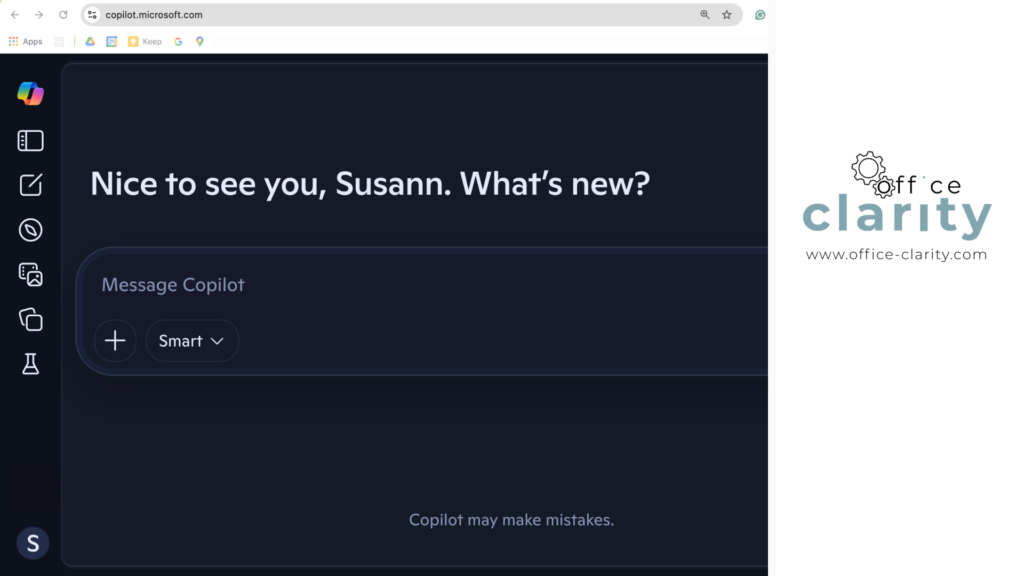
Open https://copilot.microsoft.com/
Do you need a Microsoft account to use Copilot? No 😀
However, if you do have a Microsoft account, Copilot greets you with your first name and unlocks more features.
3 Easy Ways to Start Using Copilot Today
There are endless possibilities for how to use AI tools like Microsoft Copilot, Google Gemini, Chat GPT or Deep Seek. In this article, I will show you 3 best ways to use Copilot at work for – the absolute beginner.
These 3 wasy to start using Copilot will give you a first idea of the power of AI. Let’s keep it simple to not overwhelm you. I am sure that as soon as you get your feet wet with Copilot, you will quickly explore so many other ways you can use it in your day-to-day office life.
1
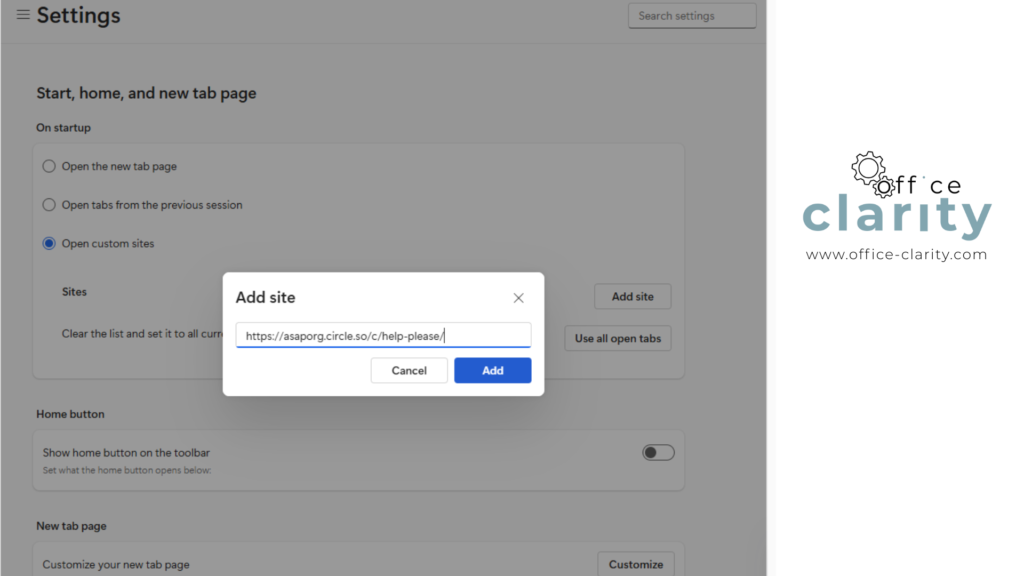
Get Instructions.
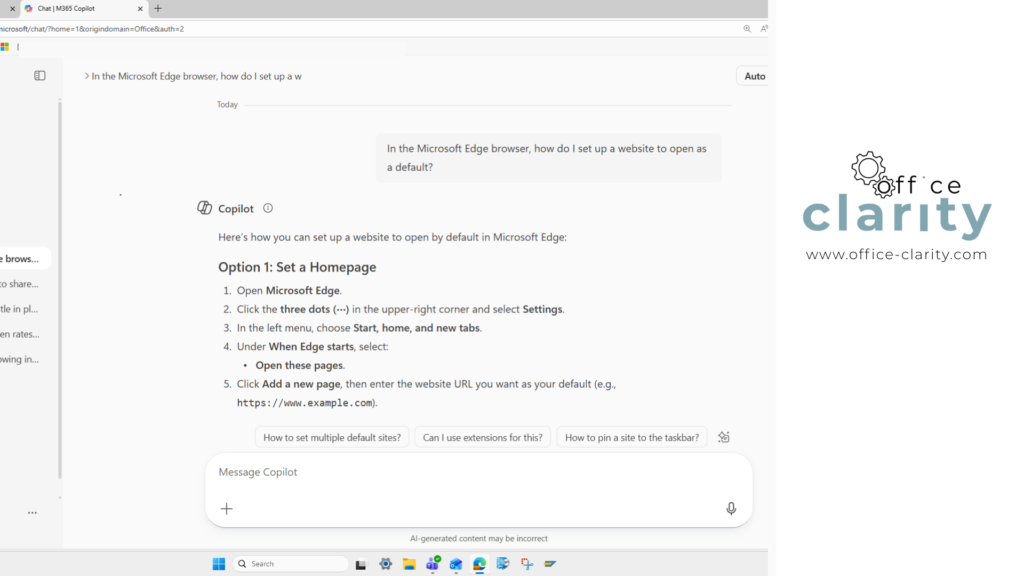
Maybe you have already read some of my other blog posts. In many posts, I explain step by step how to use certain tech tools.
For example:
1. How to Set Up a Mail Merge with Word and Excel
2. How to Set Up Rules for Outlook
or
3. How to Take a Screenshot on Windows
Inevitably, these instructions will eventually be outdated because software changes. The buttons and clicks you have gotten used to will now be slightly different.
On the other hand, if you ask Copilot for instructions, the instructions will be, for the most part, always up-to-date. I am saying this based on my experience. If you have a different opinion on the accuracy of Copilot instructions, let me know in the comments.
So, whenever I want to learn how to do something on my computer, I ask Copilot. Especially for Microsoft products, it is a reliable source. Of course, Copilot does not compete with a detailed blog post written by a human (like this one 😉), but most of the time it quickly gets me the precise answer I need.
2
Brainstorm document structuring.
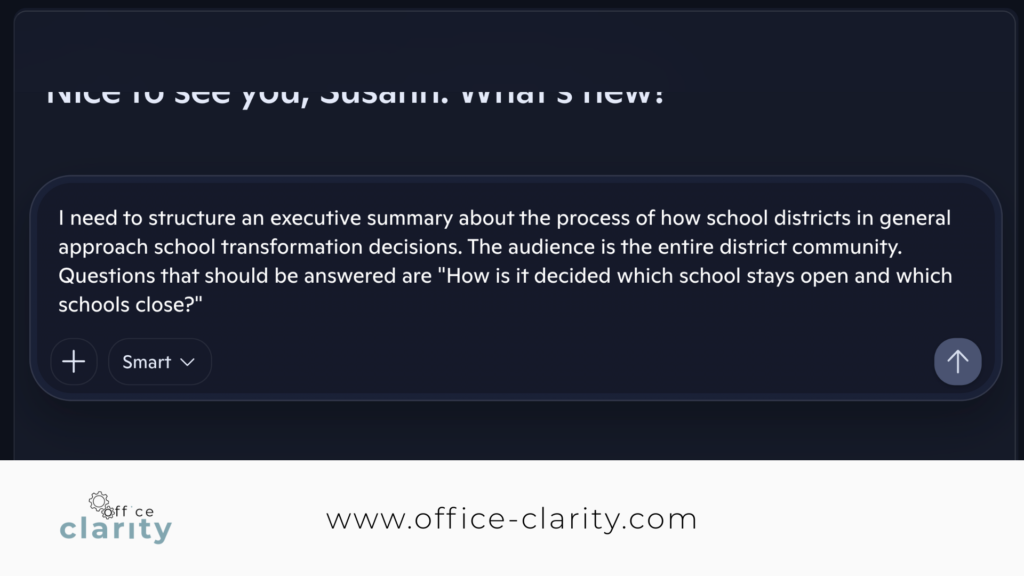
I was recently asked to structure a document on a topic that was pretty unfamiliar to me.
So, I asked Copilot. Bam – it had a suggestion right away for what to talk about and in what order. I will say, though, that I also asked Google Gemini to test if the answer was the same. Gemini had a few other ideas, and in the end, I went with a combination of both.
3
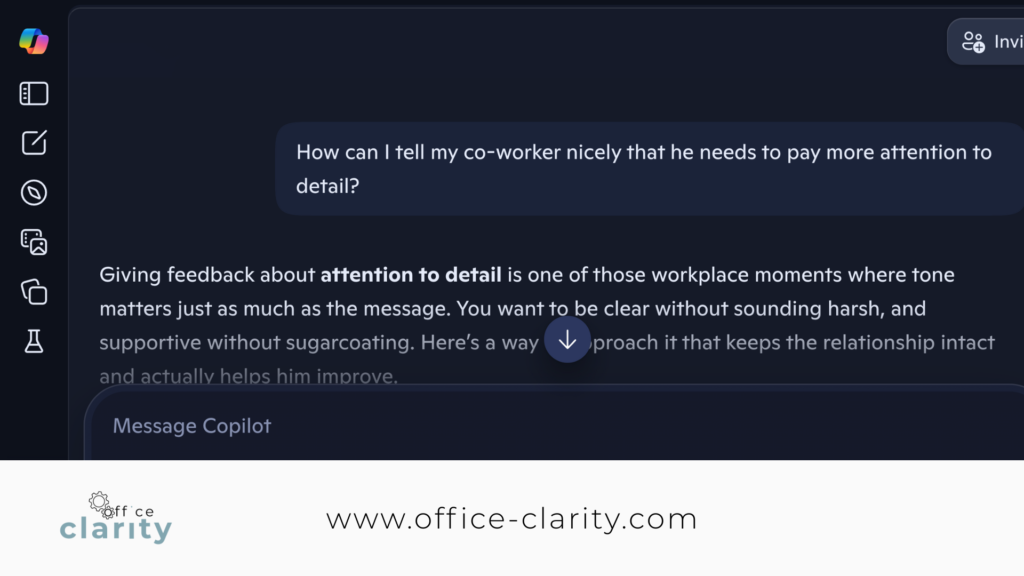
Get help Finding the Right Words.
Maybe you need to have a difficult conversation with a coworker, you’re stuck in an email or need speaker notes for a PowerPoint presentation. Copilot is happy to help!
I am always so amazed by how Copilot can help me find the right words.
You May Also Be Interested In:

p.s.
One More Thing:
I am sure you would not say “no” to receiving fewer emails altogether. What if I told you there is a way you might not have thought of? A method that will reduce the number of emails you receive… I personally guarantee it!
Curious and willing to learn? Click below to receive your free email template for every future email you’ll write.
Write? Yes. You’ll see.