How to Save an Email as a Template in Outlook
Oh, how I wish I had known sooner how to save an email as a template in Outlook!
Think about it:
How often do you send the same or a similar email? Maybe it’s a recurring reminder, a standard hiring email or a meeting summary.
Why write a new email every time?
Maybe you’re thinking: “I already have templates saved in Word or Google Docs.” That’s awesome! But did you know you could even save yourself the step of copying and pasting those emails by creating a template email in Outlook?
After I started my role as an Office Manager for a Senior Leadership Team, creating email templates was the 2nd automation step after creating rules in Outlook, which helped me massively in getting my email influx under control.
No more wasting time rewriting emails. Instead, I often use two clicks to insert a prewritten email template and am almost done!
In this post,
I will show you how to save a template in Outlook Web in a few surprisingly simple steps.
If you prefer the Outlook desktop version for saving your templates, read this post:
If you want to know how the structure of emails you write counteracts receiving emails back, click below:
Free yourself from email stress!
Reduce the number of emails you get by changing the structure of the emails you send.
Learn how with this simple one-pager.

How to Save a Template in Outlook – Step by Step
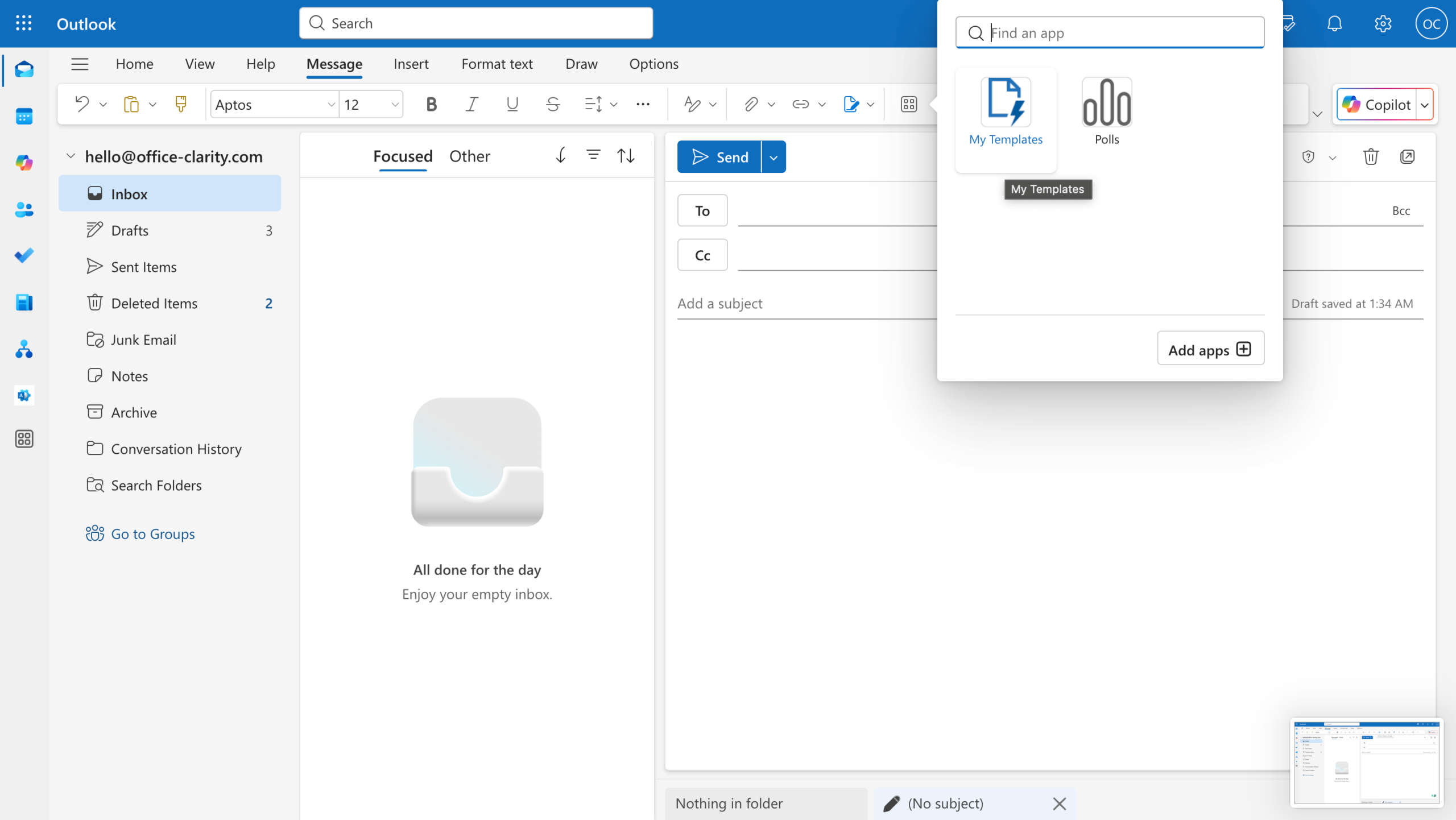
Step 1: Click the App icon! [This is the hardest part – once you find the icon, you’re golden!]
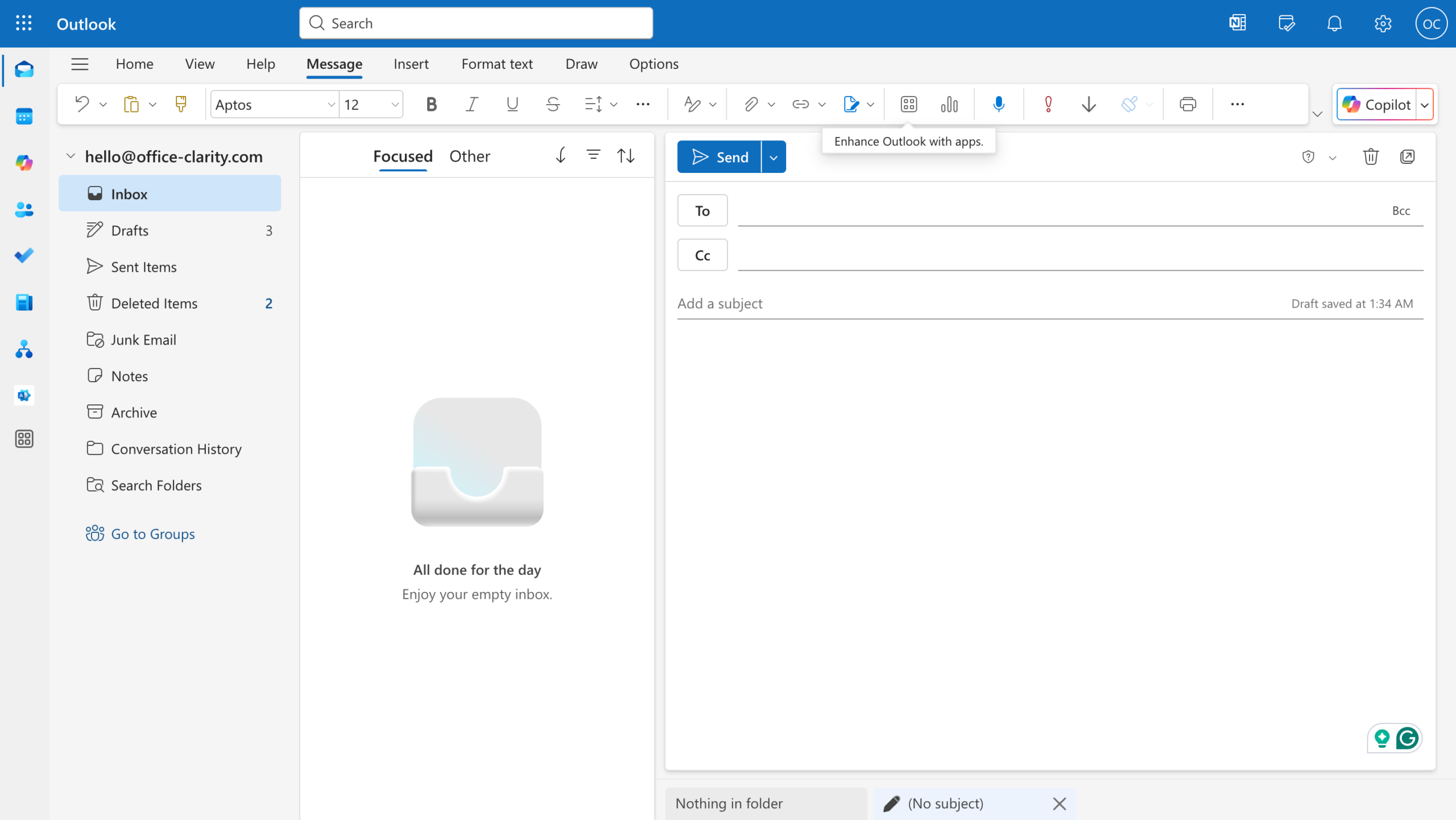
Step 2: Click “My Templates”
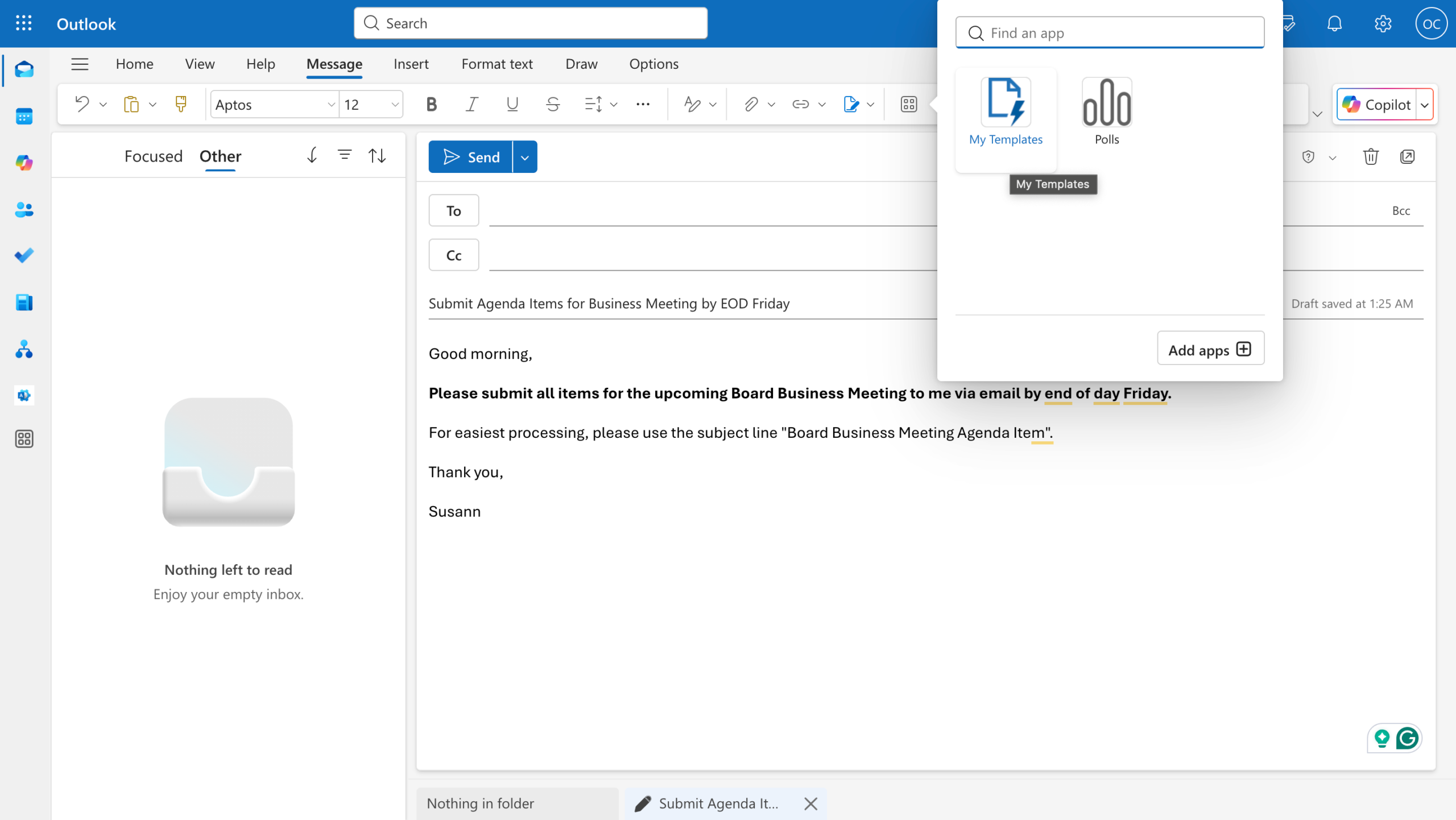
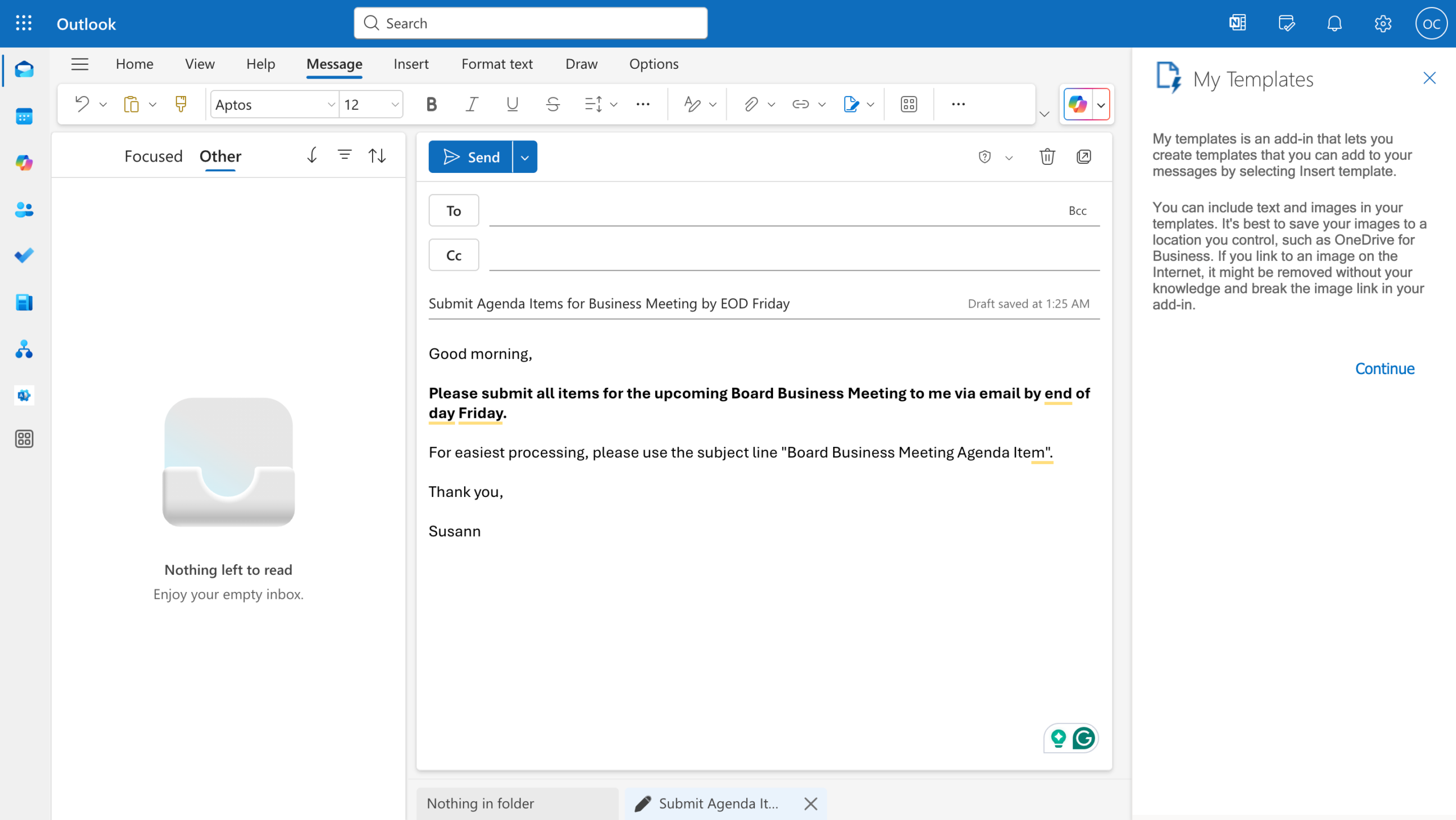
Step 3: Click “Continue”. [You may not get this step.]
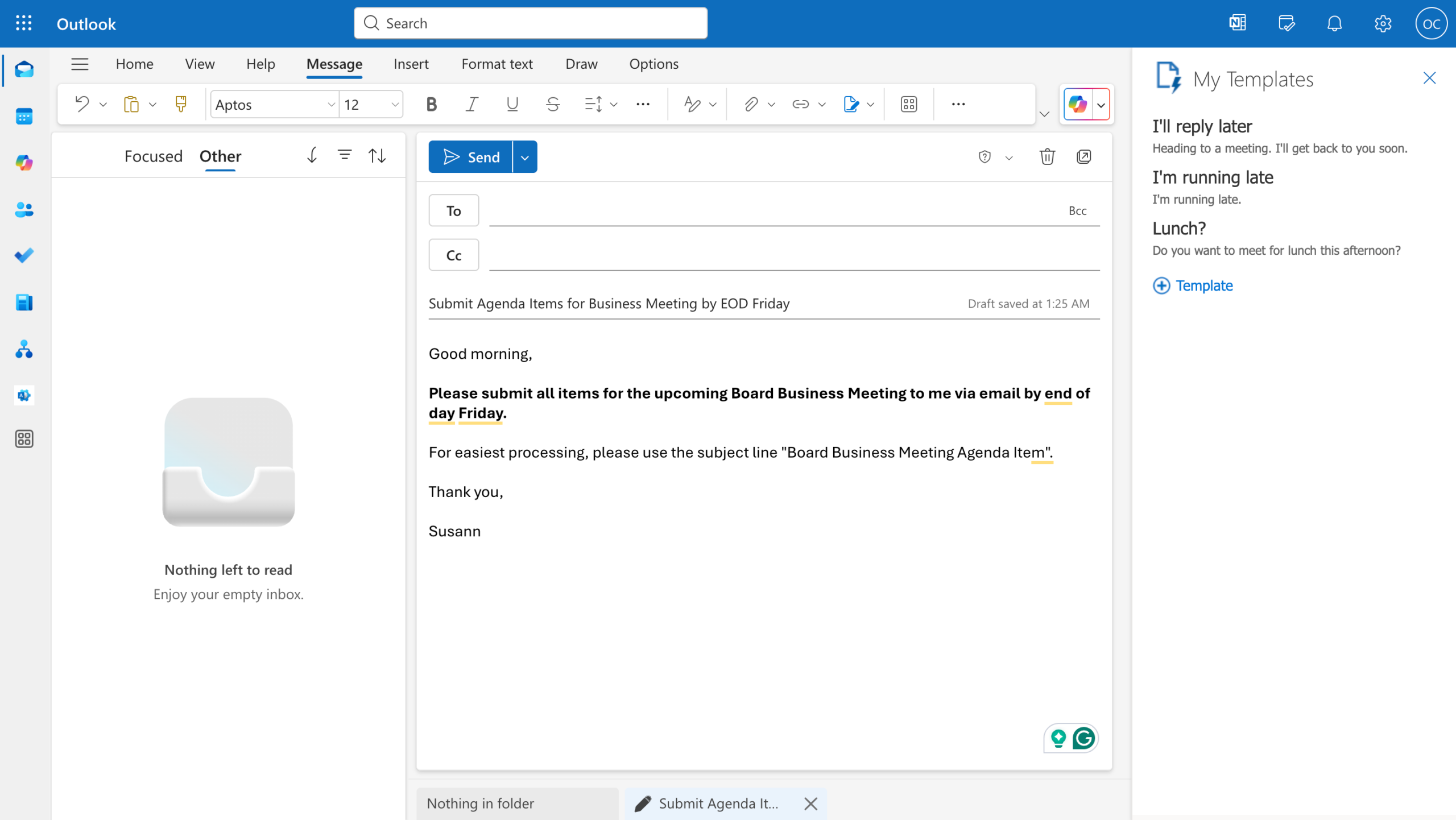
Step 4: Click the blue “+ Template” link.
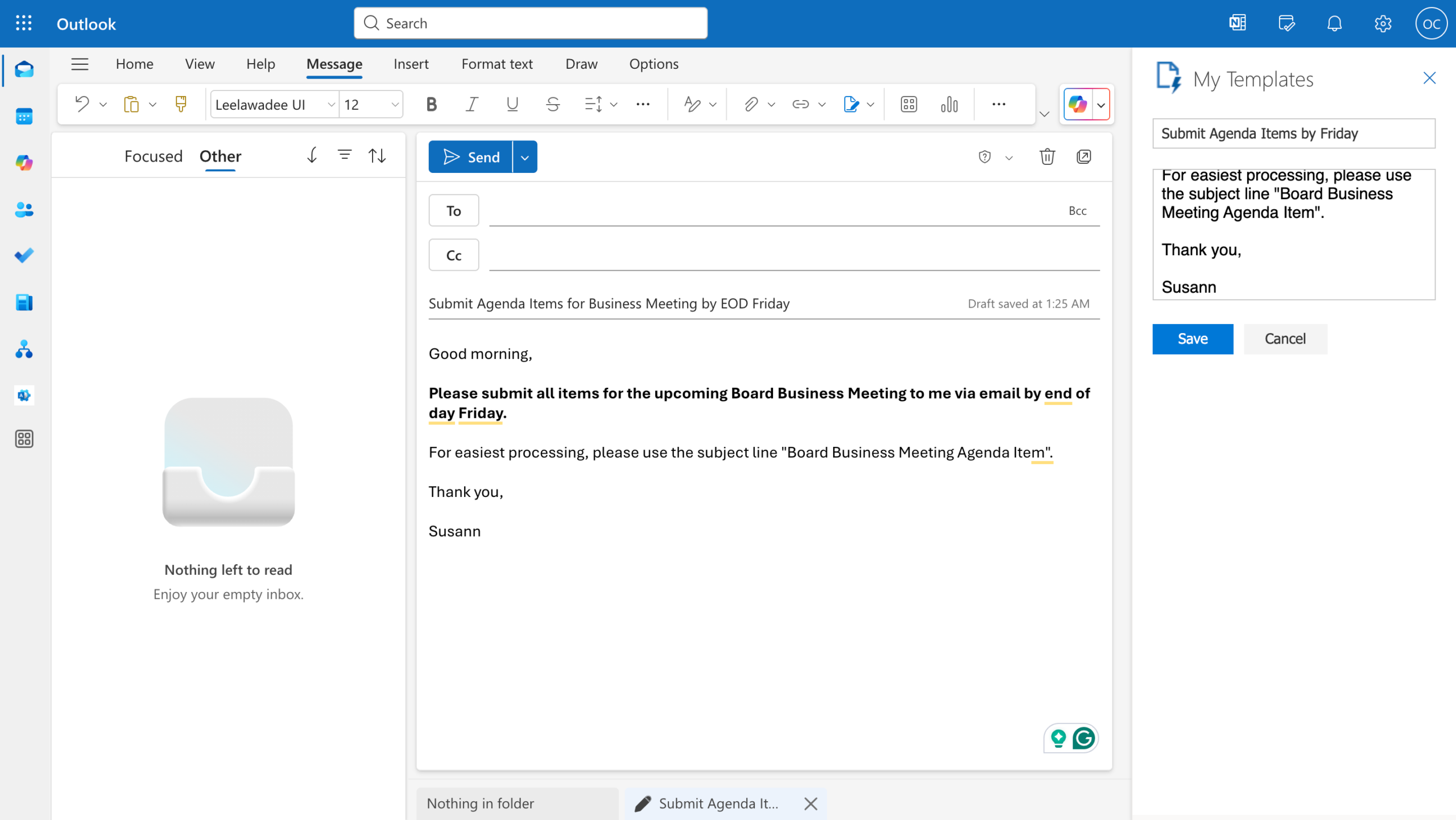
Step 5: Paste your template email in the text box. Title the template. Click “Save”.
How to Save an Email as a Template in Outlook – Videos
Video 1: This is my personal screen recording of the steps above.
Video 2: This is the video I learned from.
How to Use a Saved Email Template
Step 1: Click on the Outlook App Icon. Click “My Templates”.
Step 2: Click on the email template you want to use.
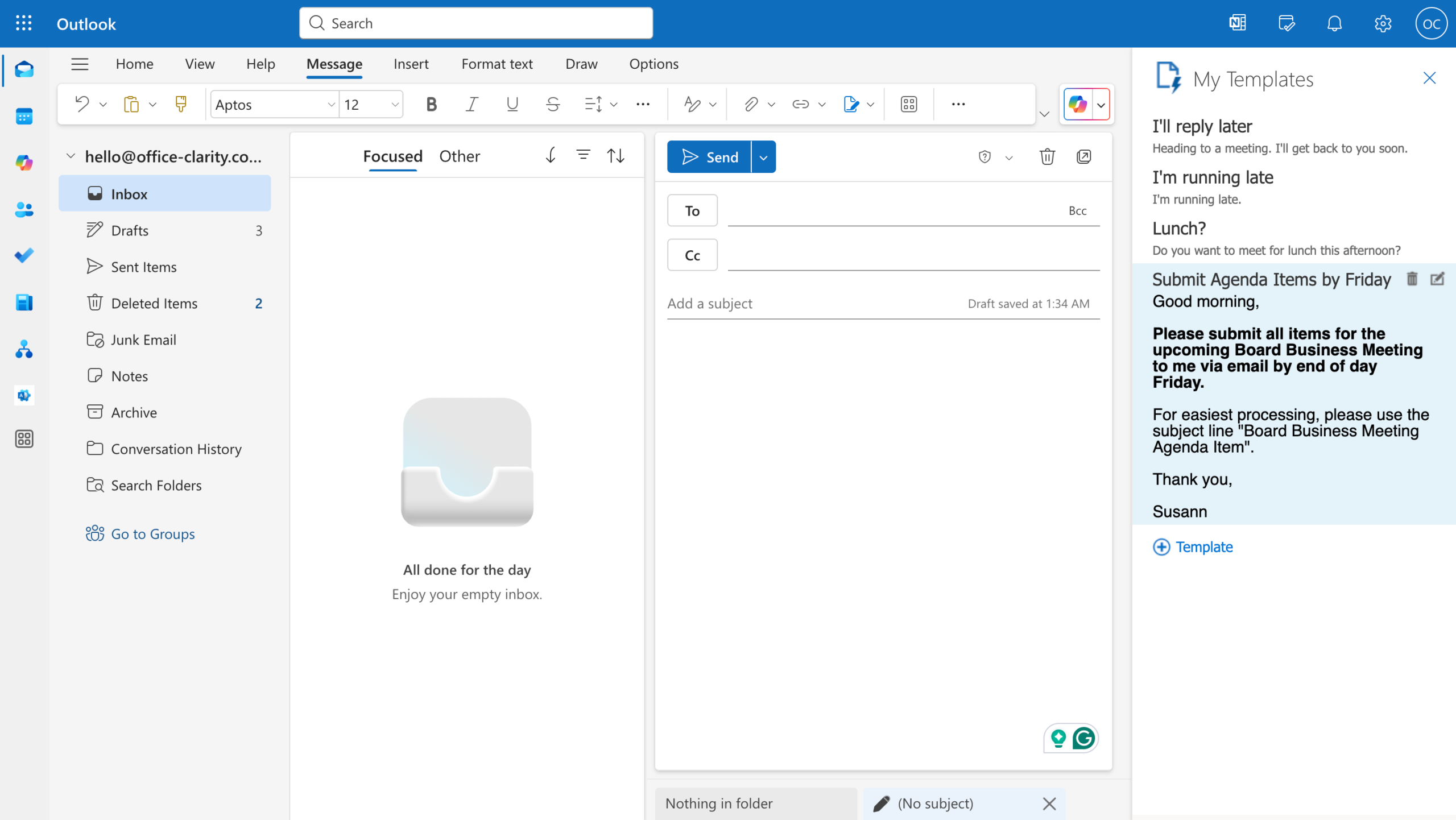
Step 3: Give your email an informative subject line. Send your email.
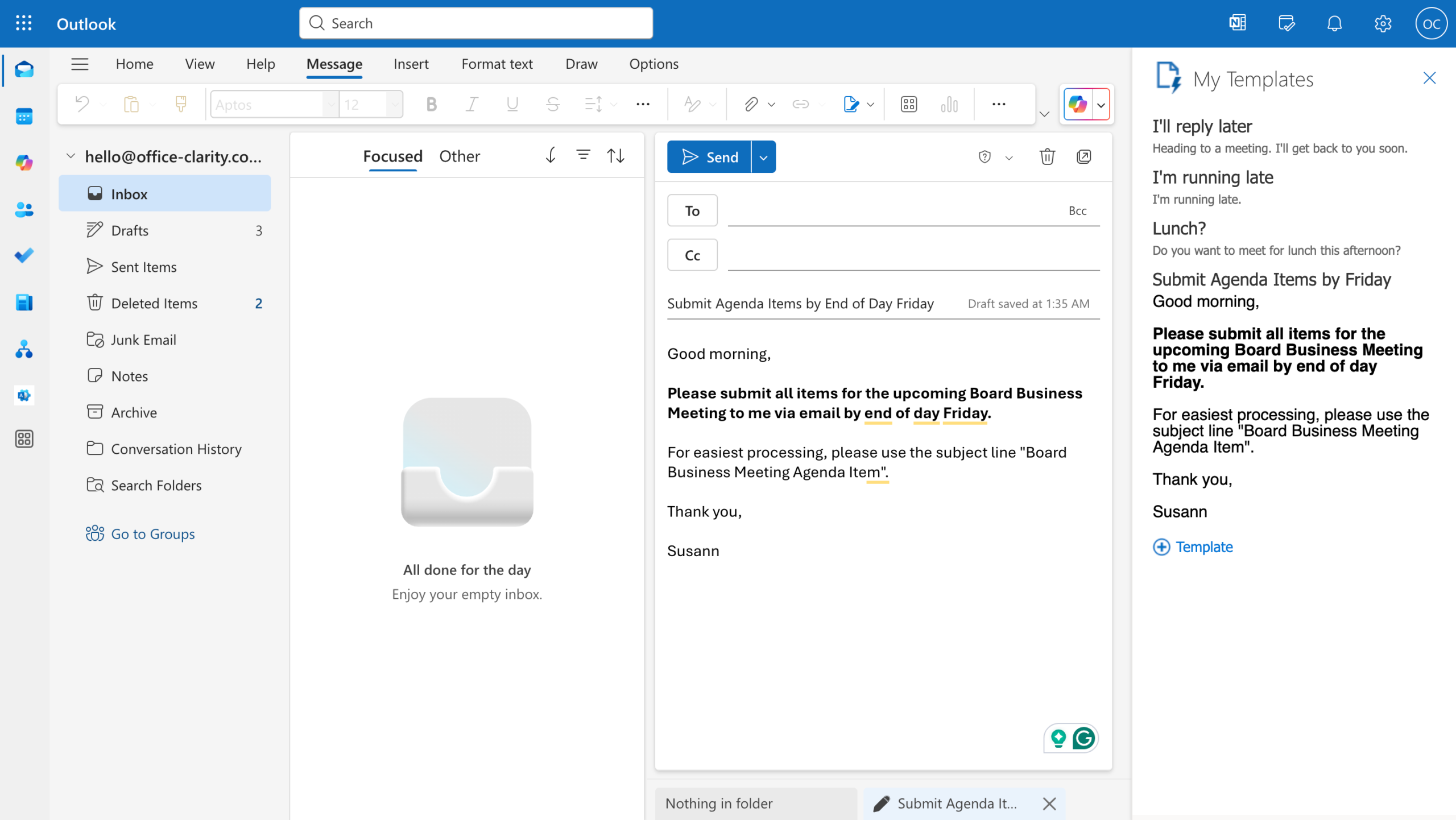
Video on how to use a saved email template in Outlook:
Want More Tips For An Easier Office Life? Consider these Articles:
How to Set up Rules for Outlook for Guaranteed Inbox Clarity
How to be Less Stressed at the Office with This Easy Email Habit
Email Back and Forth: The Best Way to End It For Good
Just Another Day at the Office – A Simple Daily Structure
How to Write a Professional Email Out of Office Notice
3 Proven Tips for Email Management Best Practices Outlook
How to Save an Email as a Template in Outlook
Rule for Gmail Inbox? 7 Easy Clicks to Set Them Up
How to Get Back Your Focus in the Workplace
Renaming Multiple Files at Once in 7 Surprisingly Easy Steps
How to Share and Email Template in Outlook and Why You Should Do It
How to Set Up a Mail Merge on Word
The Ultimate Guide to Email Subject Line Examples for Meeting Request
How to Organize Files Mac Step by Step Guide
How to Organize Files on Mac Computers
3 Easy Steps to Saving Templates in Outlook Desktop Mac
https://www.ablebits.com/office-addins-blog/email-templates-new-outlook-web
https://clean.email/blog/email-providers/outlook-email-templates
p.s.
One More Thing:
I am sure you would not say “no” to receiving fewer emails altogether. What if I told you there is a way you might not have thought of? A method that will reduce the number of emails you receive… I personally guarantee it!
Curious and willing to learn? Click below to receive your free email template for every future email you’ll write.
Write? Yes. You’ll see.