Creating a Fillable PDF Form in a Few Simple Steps
Imagine you are a contractor. You want to offer some consulting services to an organization. You are asked to complete some forms and email it to the Procurement team.
Imagine the following form is one of them. Now I am going to ask you to do something that no blogger should do: Leave my blog.
Now go to the following link from the website of the IRS: https://www.irs.gov/pub/irs-pdf/fw9.pdf
What do you notice?

Hey, would you like fewer emails?
In this post, you’ll learn:
- how to create a fillable PDF form using Adobe Pro
Let’s do it.
Not what you were looking for? How about this ⬇️?
Right. You can type right into this form. Save it. Download it. Attach it to your email and done.
Maybe you didn’t even think about how easy this was. But I am sure you would, if your experience was something closer to this ⬇️
In the worst case, it might have gone something like this:
- On Monday you open the organization’s email with the vendor forms you are supposed to complete. You can’t edit it for some reason.
- So you print it. But you don’t have a printer.
- So you print it at Office Max later.
- Back home you fill out the form with ink on paper.
- Now you need to scan it. But you don’t have a scanner.
- So you download some app on your phone to try to scan it.
- The app isn’t working.
- So you just take a picture of the completed document.
- The document has 5 pages though, so you take 5 separate pictures.
- You need to get these pictures to your computer somehow to attach them.
- Ahhh – you call your daughter for help. She is busy today and call your back Tuesday.
- With the pictures on your computer, you now send the email with the 5 attached pictures.
- You receive the instant reply that you need to submit the form completed in 1 document.
- You give in. You take an envelope and mail the form via U.S. post.
- On Wednesday you forget to put the letter in the mail. You put a post-it note on your door, so you remember on Thursday.
- The office’s mail service delivers the mail to the Procurement department on Monday.
- 1 week has gone by.
🫨
Ok, I know this might be an extreme example, but let’s remember: Not everyone, even if a contractor, has the same level of tech skills. The above scenario might be very real for some people.
I have certainly received vendor forms via snail mail before.
3 reasons you should use fillable PDF forms as often as possible
- It makes the experience of the person using the PDF a lot easier
- You receive the form back much quicker.
- Your organization gains positive reputation for being easy to work with.
What tech do you need to create a fillable PDF?
Adobe Acrobat Pro (paid)
5 Steps to Creating a Fillable Form with Acrobat
1
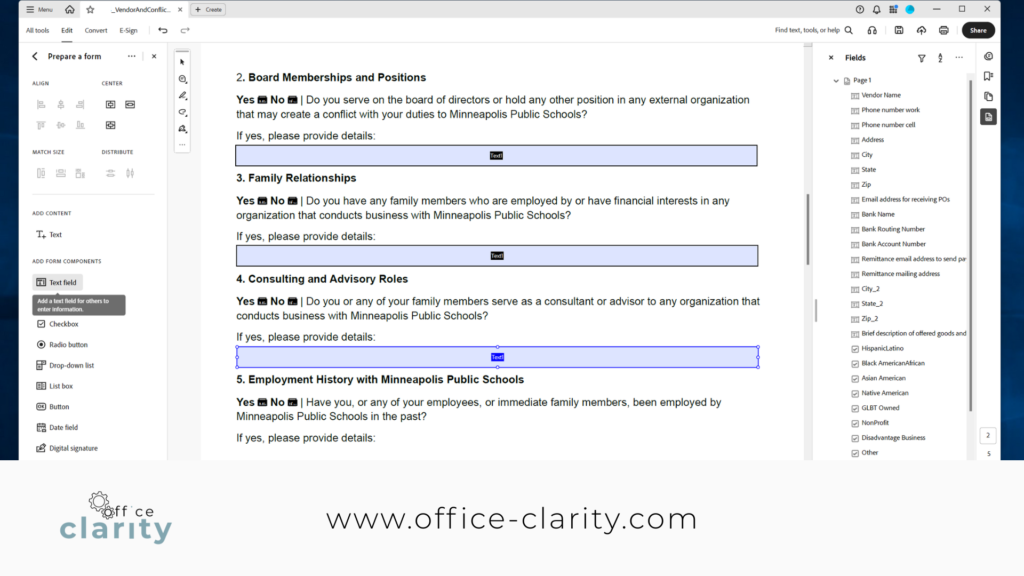
Upload a PDF document into Adobe Acrobat Pro. Then click “Prepare of Form”. You will see that Adobe automatically recognizes form fields and fills them in.
2
Create additional form fields using the tool bar on the left side. For example, click “text field” to create more text fields.
3
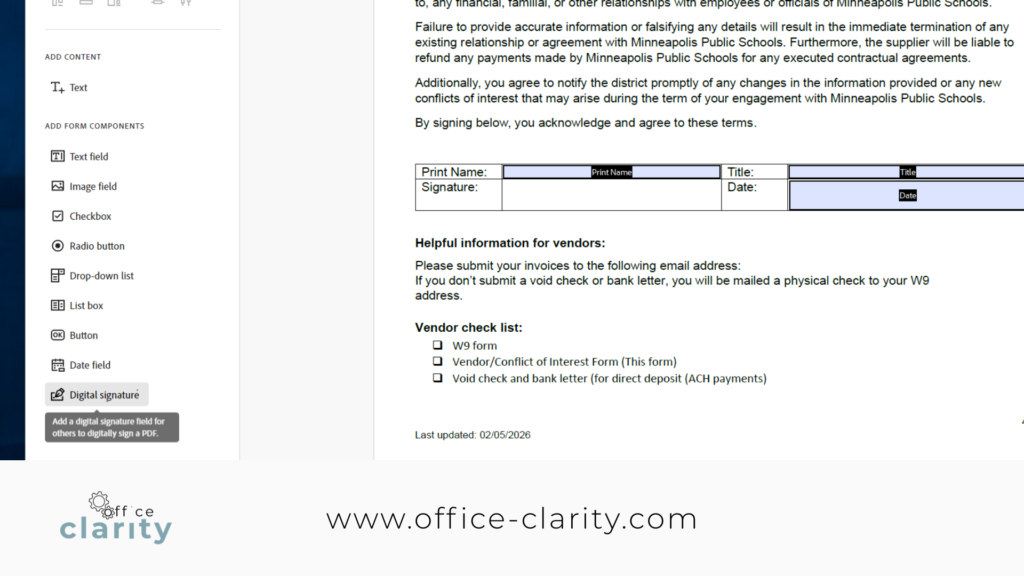
Add a signature field if you need clients / users to sign the form.
4
Save the PDF. The form fields will be saved automatically. Attach the PDF to an email or publish on a website.
5
Now, people can simply open the PDF in a browser, like Chrome and fill out the form right there and then. No more printing or signing in ink – just fill out, save, send.
Questions? Ask: Copilot: https://copilot.microsoft.com/
I hope this helps.
With Clarity,
Susann
p.s.
One More Thing:
I am sure you would not say “no” to receiving fewer emails altogether. What if I told you there is a way you might not have thought of? A method that will reduce the number of emails you receive… I personally guarantee it!
Curious and willing to learn? Click below to receive your free email template for every future email you’ll write.
Write? Yes. You’ll see.