How To Take a Screenshot on Windows
How to take a screenshot on Windows is probably one of the first things I needed to learn when I switched from Mac to PC (a Windows computer). Why did I switch? Because some programs did not run properly on Mac – unfortunately.
If you are a Mac user, you know the 3 keys to press in your sleep to take a screenshot on Mac. And I didn’t realize how often I was using that shortcut as part of my daily routine until I didn’t know how to take a screenshot anymore.
In this post, you’ll learn:
- Which tool to use to take screenshots on Windows
- How to use a keyboard shortcut to take a screenshot
- How to dedicate a spot on your PC for where to save your screenshot
- How to avoid screenshot-clutter
Not what you were looking for? How about this ⬇️?
How to Take a Screenshot on Windows Step by Step
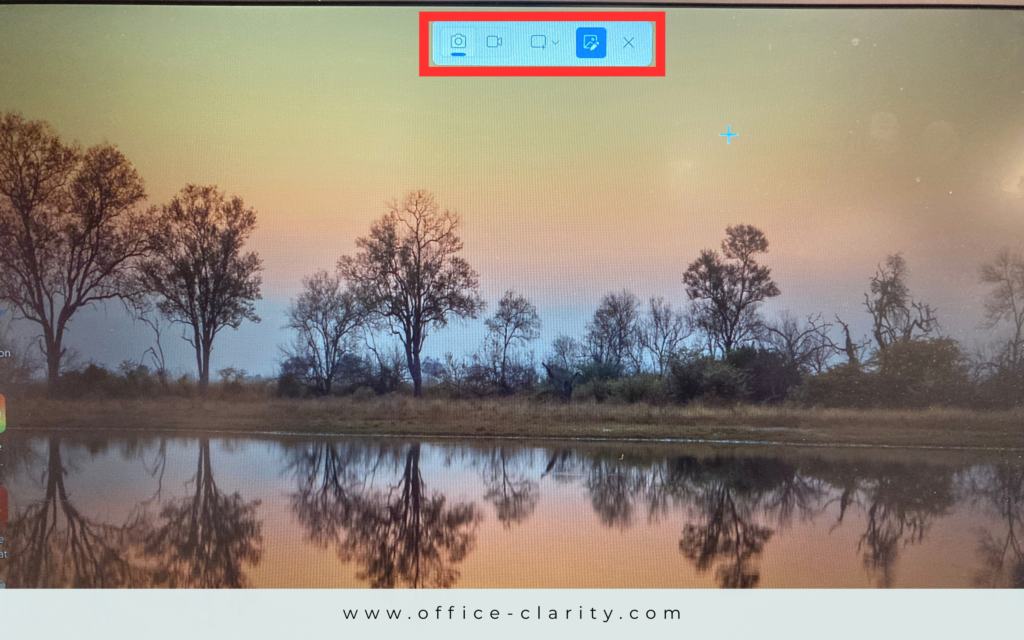
You’ll notice that the images below are of slightly lower quality. The reason is that while I figured out how to take a screenshot on Windows, I still didn’t know how to take a screenshot of taking a screenshot 😉 So, I used my 4.5-year-old phone – I know, very 2020.

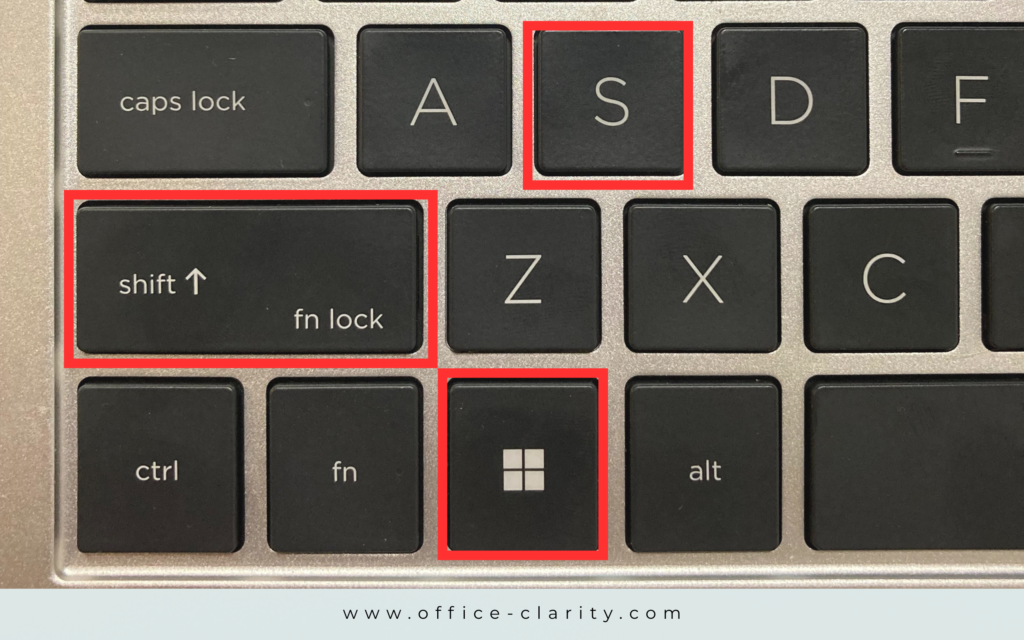
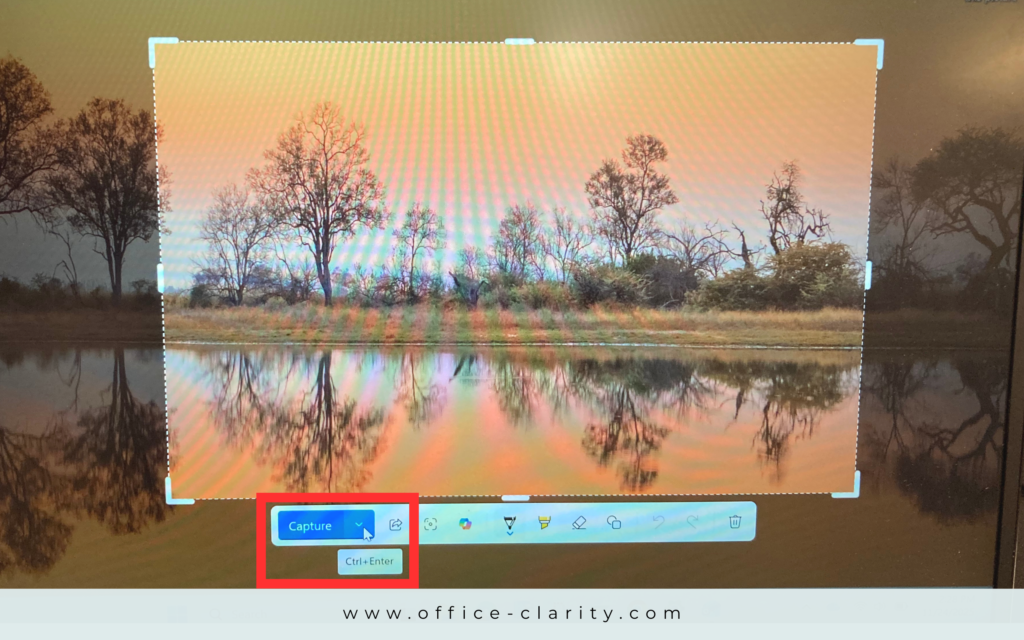
3
Click and drag a window across your screen.
Let go of the keys.
Click the arrow next to the “capture” button to select a destination for where to save your screenshot.
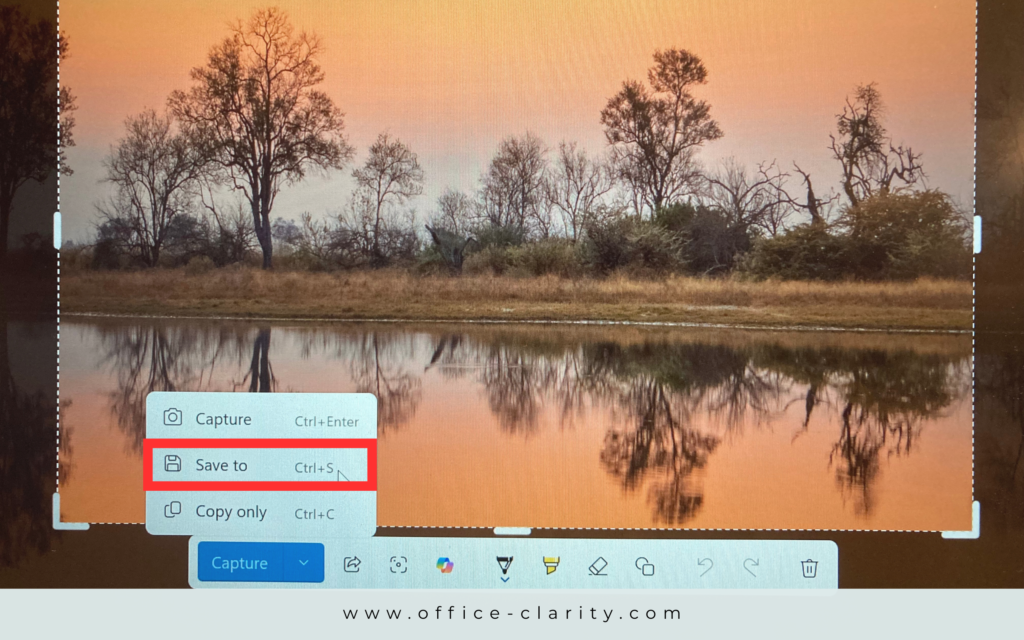
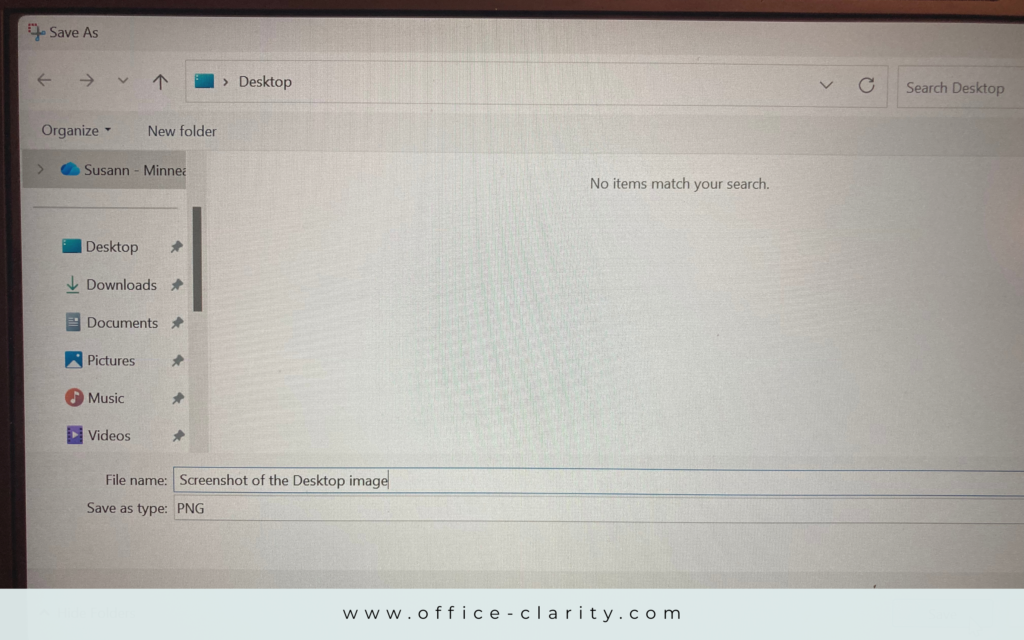
5
Select the destination on your computer for where you’d like to save your screenshot.
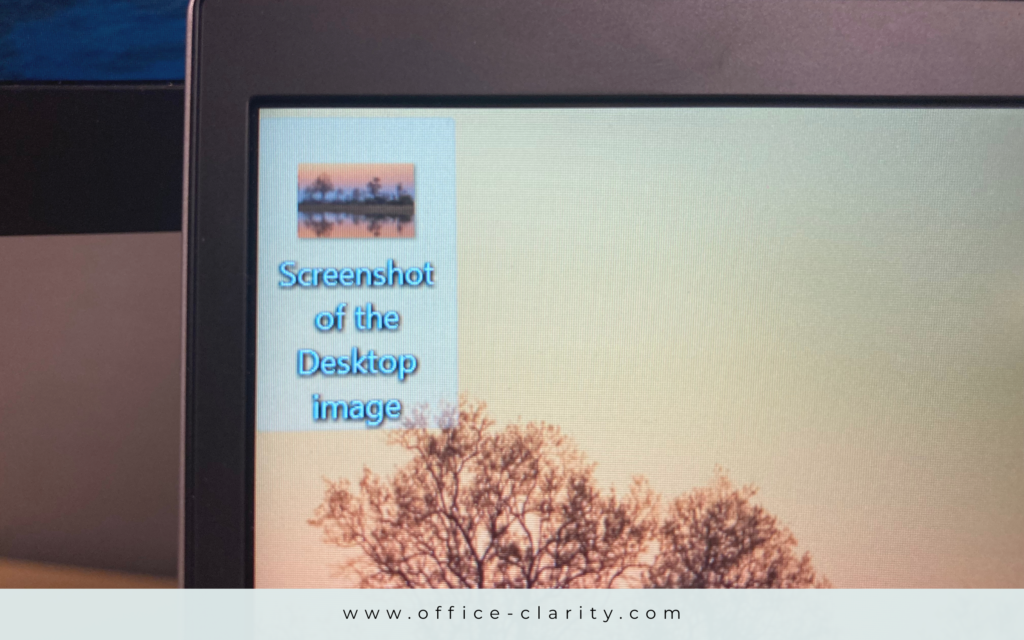
I picked the desktop.
What I use Screenshots For
I didn’t realize how many screenshots I take in a given day until I didn’t know how to take a screenshot on my new HP device anymore. So, I started to pay attention to it and made a list:
- sending questions to co-workers via Teams/emails
- documenting correspondence
- writing Standard Operating Procedures
- showing co-workers where files or information are located
What do you use screenshots for? Tell me in the comments?
Deleting Screenshots Regularly
Screenshots are a perfect example of files that clutter your work device. When I moved from Mac to PC, I had to organize all my files on my Mac before transferring. During that process, I realized how much of the digital clutter came from screenshots. Consequently, to keep my downloads folder and desktop clean, I implemented deleting screenshots into the wrap-up part of my daily routine in the office.
The screenshots I want to keep, I rename immediately and save in the designated folder.
With Clarity
Susann
You May Also Be Interested In:

p.s.
One More Thing:
I am sure you would not say “no” to receiving fewer emails altogether. What if I told you there is a way you might not have thought of? A method that will reduce the number of emails you receive… I personally guarantee it!
Curious and willing to learn? Click below to receive your free email template for every future email you’ll write.
Write? Yes. You’ll see.