3 Easy Steps to Saving Templates in Outlook – Desktop Mac
Saving templates in Outlook and reusing them for recurring emails is such a time saver!
Maybe you have read my initial article on how to Save an Email as a Template in Outlook (web version) or on How to Share an Email Template with others.
What is an “Email Template”?
email template
Co-Pilot
=
ready-made email you can reuse
I recently offered a group of staff who sit close to me to teach them how to use email templates in Outlook. One peer pretty quickly came over to me to ask me to show how to do it. On the other hand, a different co-worker asked me: “Susann, what is this Outlook template thing?” Valid questions. And I am so glad she asked.
Sometimes we use terms because we are so familiar with them in the context of our subject matter (in my case Outlook), that we forgot that others may not know what we mean, when we say “email template”.
So, “email template” = a saved email that is ready for you to use and reuse
In This Post, You Will Learn How to:
- save an email as a template in Outlook in the desktop app version on a Mac
- use that template
- send the template to someone else
Saving the Email Template in the Outlook Desktop Version on Mac
1
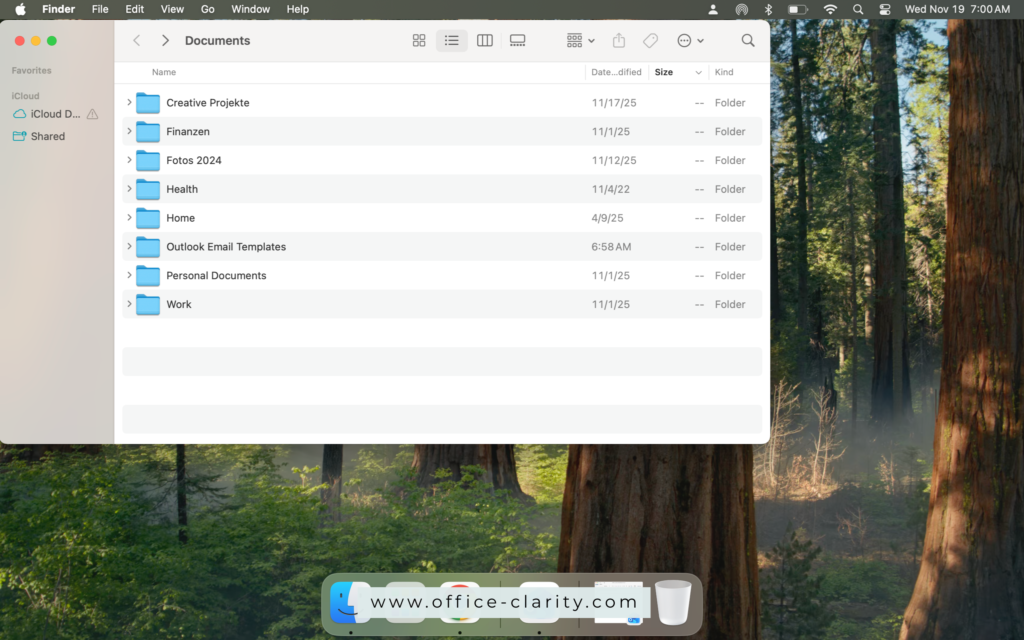
Create a folder on your Mac just for your email template files. Yes, files.
Image a PDF file or a pictures that you have saved on your Mac in a folder.
Similar to those files, you will also need a dedicated spot for your email template files – just that these files won’t be a .pdf or .jpg, but a file format called .oft.
2
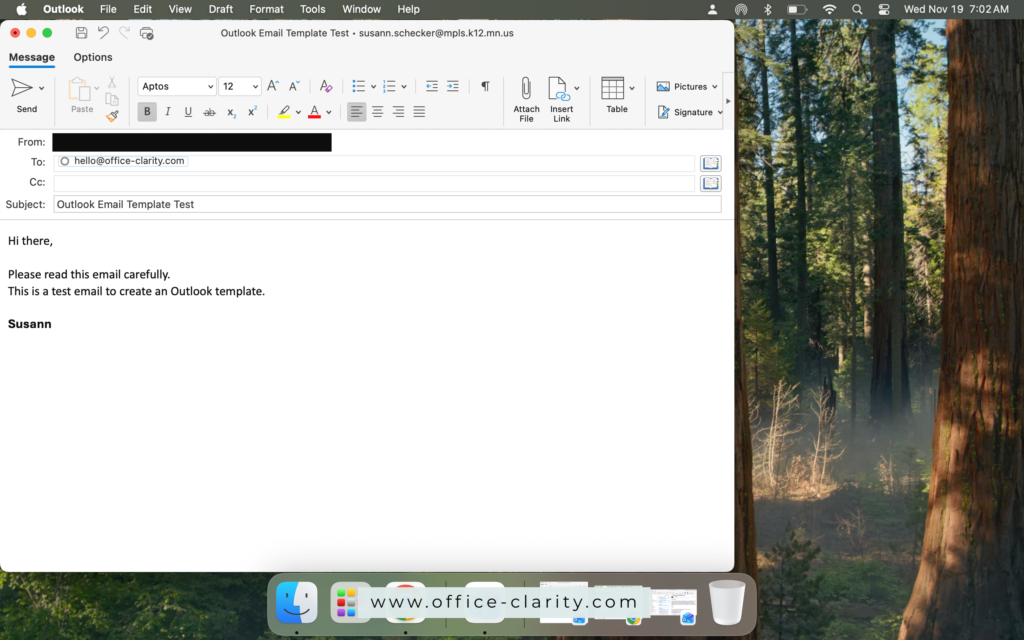
Write an email and add all the recipients of the email to the email “to” line. Don’t forget your subject line.
3
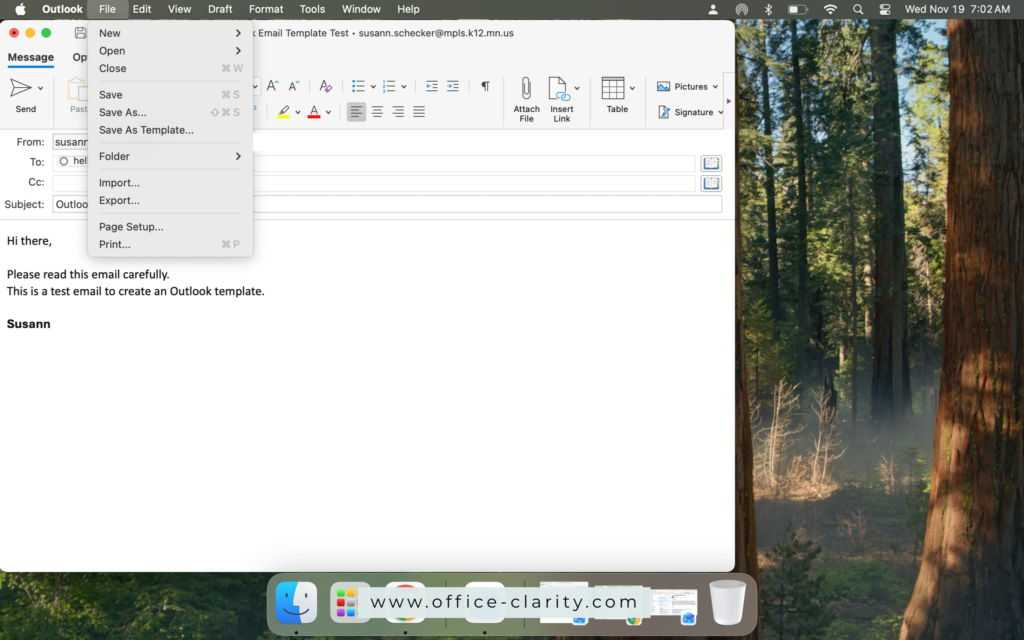
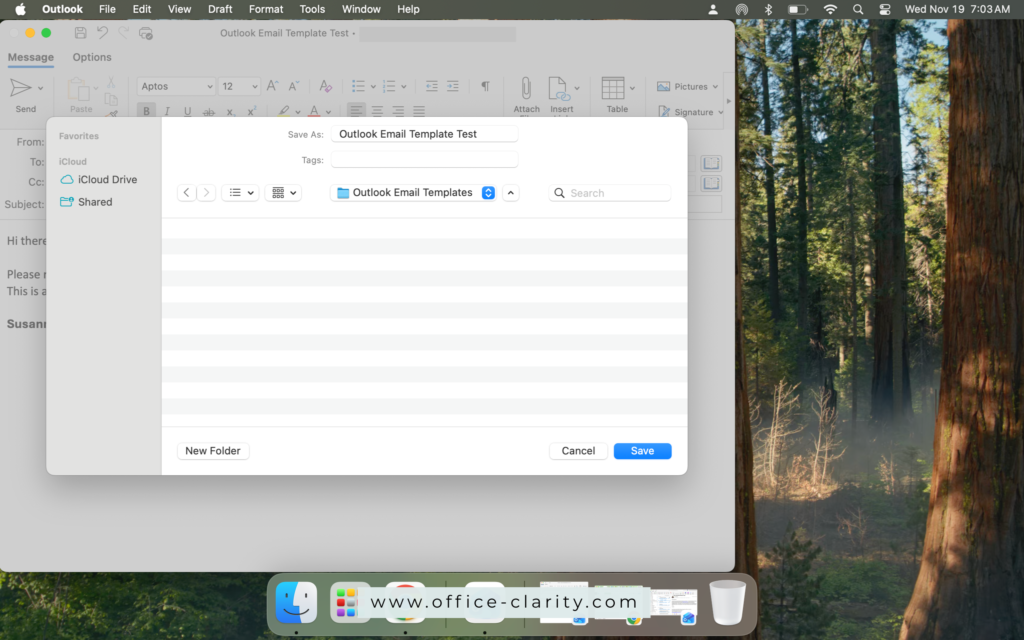
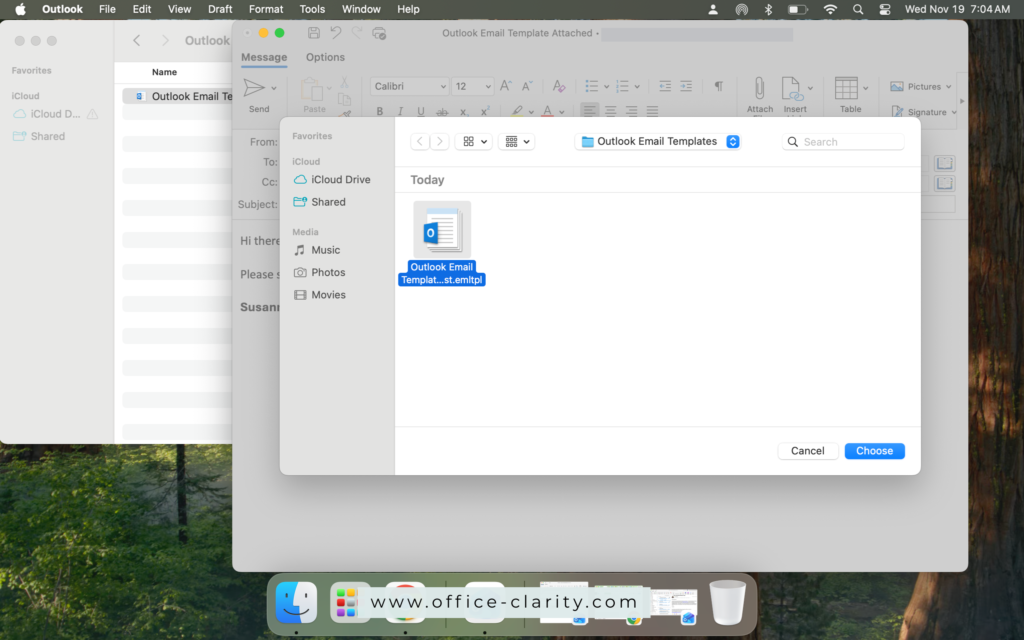
Save the email as an .emltpl file in the file folder that you created in step 1 by clicking “file” and then “save as a template”.
Using the Saved Outlook Email Template
1
Next time you want to send this or a very similar email, double click on the saved email template on your computer.
2
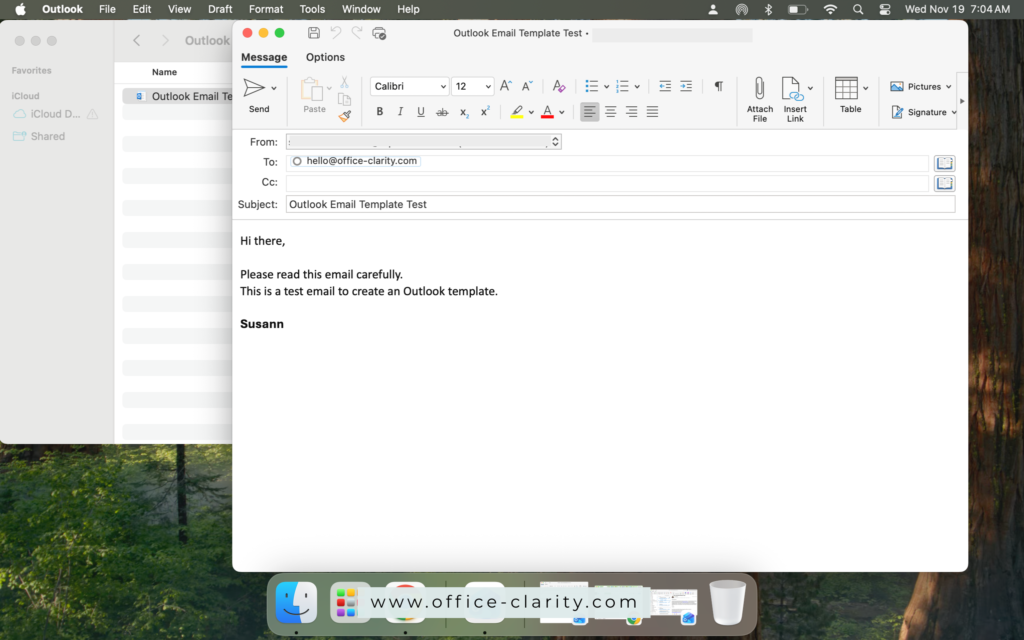
The email template will open; the people in the “to:” line will prepopulate. Make edits if you need, and hit “send”!
Sharing the Outlook Email Template with Someone Else
1
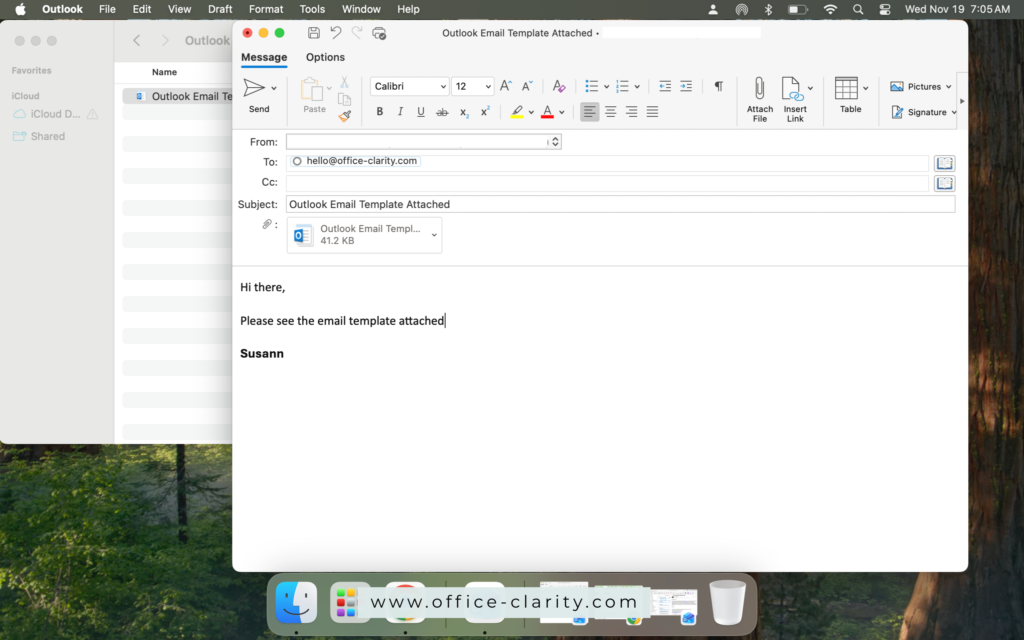
To share an Outlook email template that you saved with the Outlook dektop app on a Mac, simply attach the file to an email. An email to send an email – yes!
You can also use other common file sharing methods, like:
* uploading to a shared Cloud storage space like, Google Drive, OneDrive or SharePoint
You May Also Be Interested In:
p.s.
One More Thing:
I am sure you would not say “no” to receiving fewer emails altogether. What if I told you there is a way you might not have thought of? A method that will reduce the number of emails you receive… I personally guarantee it!
Curious and willing to learn? Click below to receive your free email template for every future email you’ll write.
Write? Yes. You’ll see.