Renaming Multiple Files at Once in 7 Surprisingly Easy Steps
“There must be a way for renaming multiple files at once!” If you have ever thought that, you are in the right place.
In this post I will walk you through:
- why changing the names of files is important
- How to rename multiple files at once, so you don’t have to waste time changing the name of documents one at a time.
Why Renaming Files Is Important
You work with files. I am 96% sure you do. Maybe you don’t call them “files”, but documents or spreadsheets.
Here is a list of examples for what I mean when I say “files”. Let me know in the comments if any of them sound familiar to you:
- contracts
- Reports
- Meeting PowerPoint presentations
- Communications draft documents
- Planning documents
- Schedules for training sessions
- Signature here, signature there
- Research documents for labor negotiations
- Screenshots /pictures
Now, let me ask you this: How many of these documents that come to you have a name that clearly describes what the document is?
Yep. Now many.
And then let me ask you: How often do you have to rename documents yourself to keep them organized and so you can easily find them later?
Yep, me, too.
File Chaos If Not Renamed and Organized
In the very early days of my role as Office Manager for a Senior Leadership team, I was bombarded with signature requests for contracts. I had started the role in the summer – peak contract renewal season in a school district.
Contract files came my may in all sorts of ways,
from all sorts of people I didn’t know and
with all sorts of names.
I tell you, it was chaos.
At work, I am usually pretty good at keeping my calm and doing one thing at a time, but the contract file chaos was a point where I started to lose the overview and feel overwhelmed.
And losing the overview over contracts could mean:
- upset colleagues for one
- Delay in goods and services for students and the district
- Upset or unpaid vendors
Why I Locked Myself In a Conference Room for 2 Hours
So – I pretty quickly realized I needed to do something.
I told my boss: “hey boss, I am going to lock myself in a conference room for the next 2 hours and create order our of chaos. Boss said: “Ok, that’s what you do best.”
2 hours later, I walked out of that conference with a naming convention (I will write about naming conventions specifically on a different day) and renamed every single file using the naming convention. That gave me a clean overview of all documents I had received.
Anyone who has ever created a video (back before AI created videos for us), knows how important file renaming and organizing is – and time time-consuming.
I neither have 2 hours of focus time nor a free conference room just to rename files.
So, I learned how to rename multiple files at once – which made the renaming process so much more efficient. And I want to show you how, so you, too, can save time!
Free yourself from email stress!
Reduce the number of emails you get by changing the structure of the emails you send.
Learn how with this simple one-pager.

How to Rename Multiple Files at Once: Step-by-Step Guide
Option 1: Adding the same text to all files
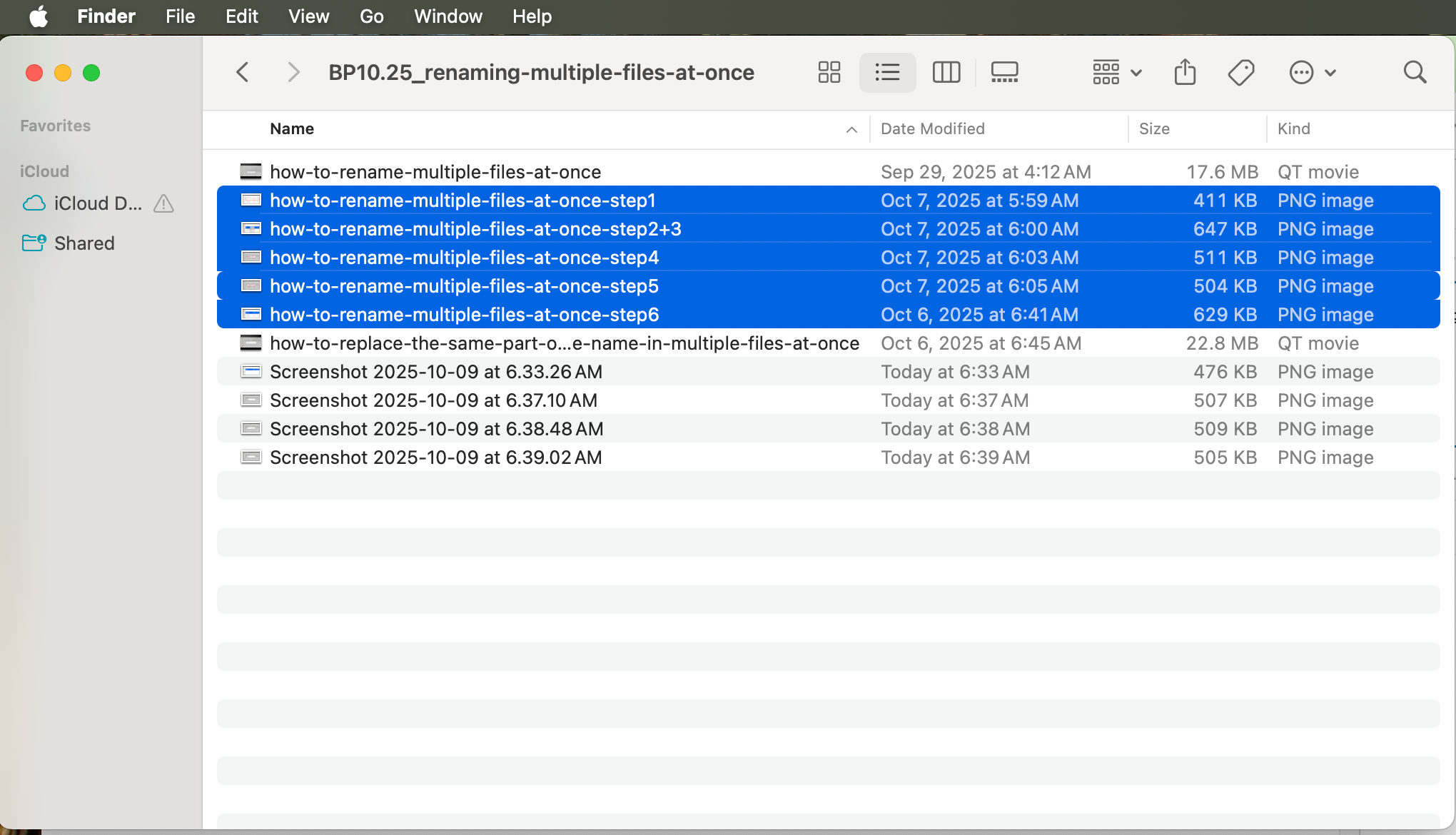
Step 1: Put all the files you want to rename in the same folder on your Mac.
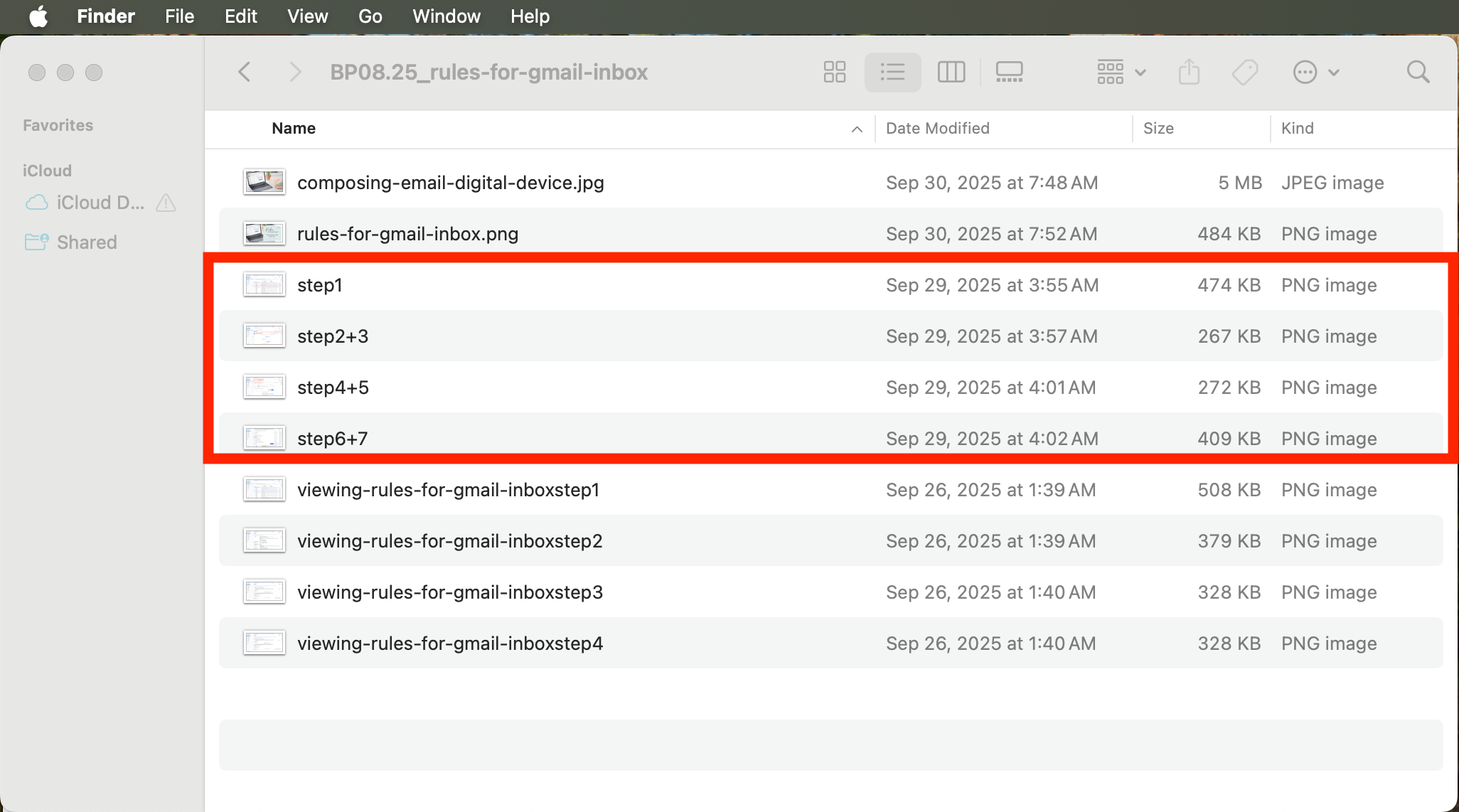
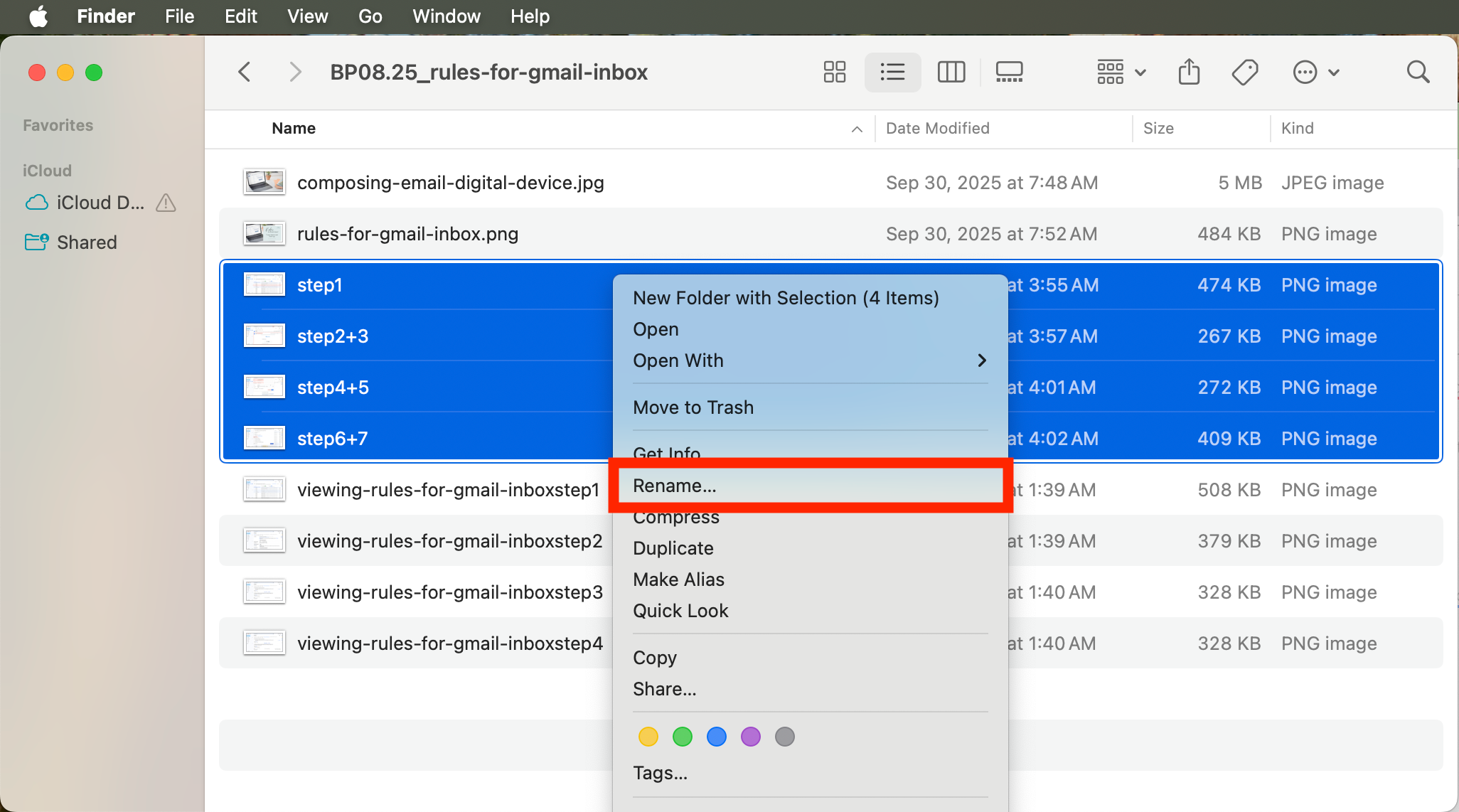
Step 2: Select all files you want to rename. On a Mac: Hold “Control” + click all files you want to select. Then, cight click on one of the selected files and click “rename”.
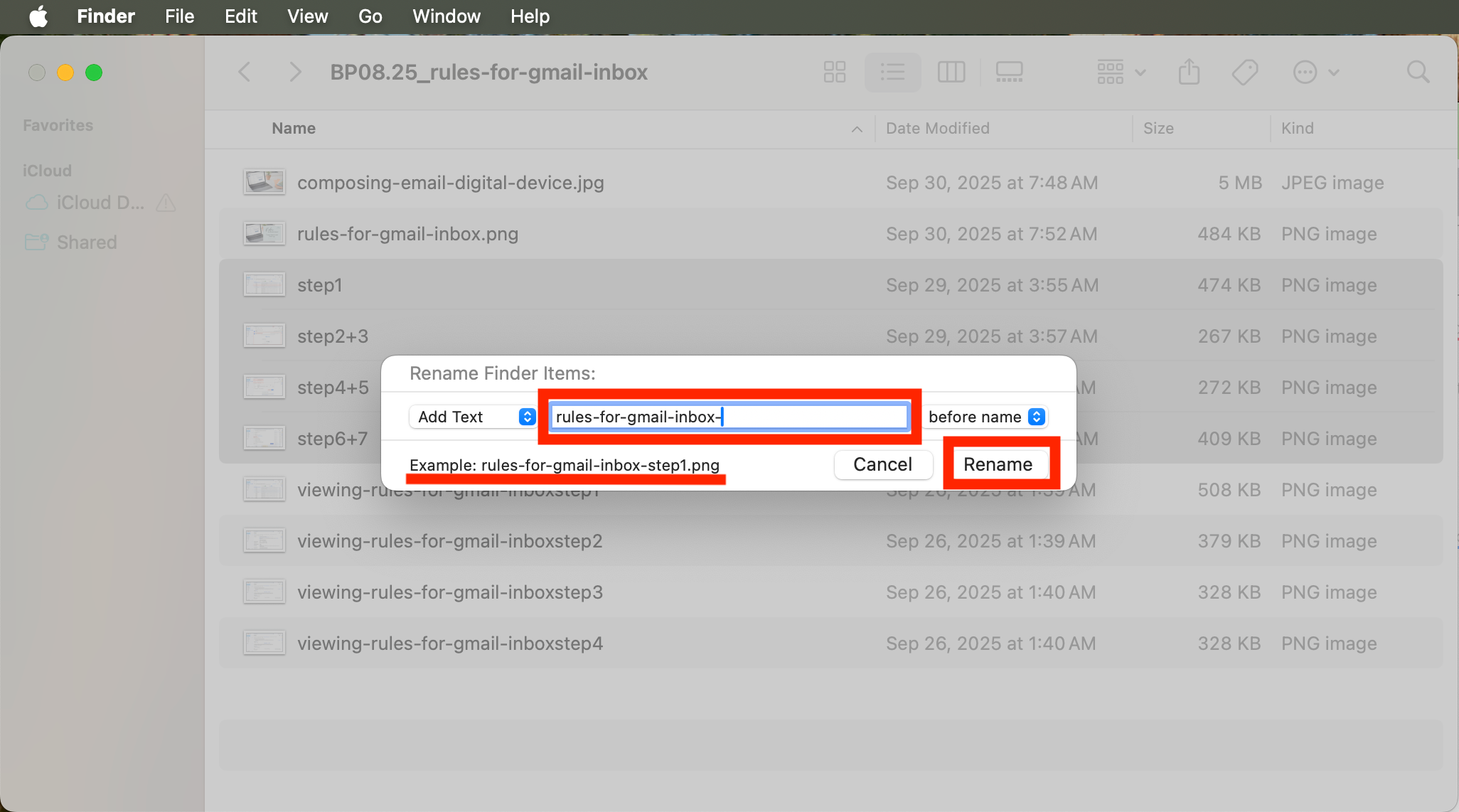
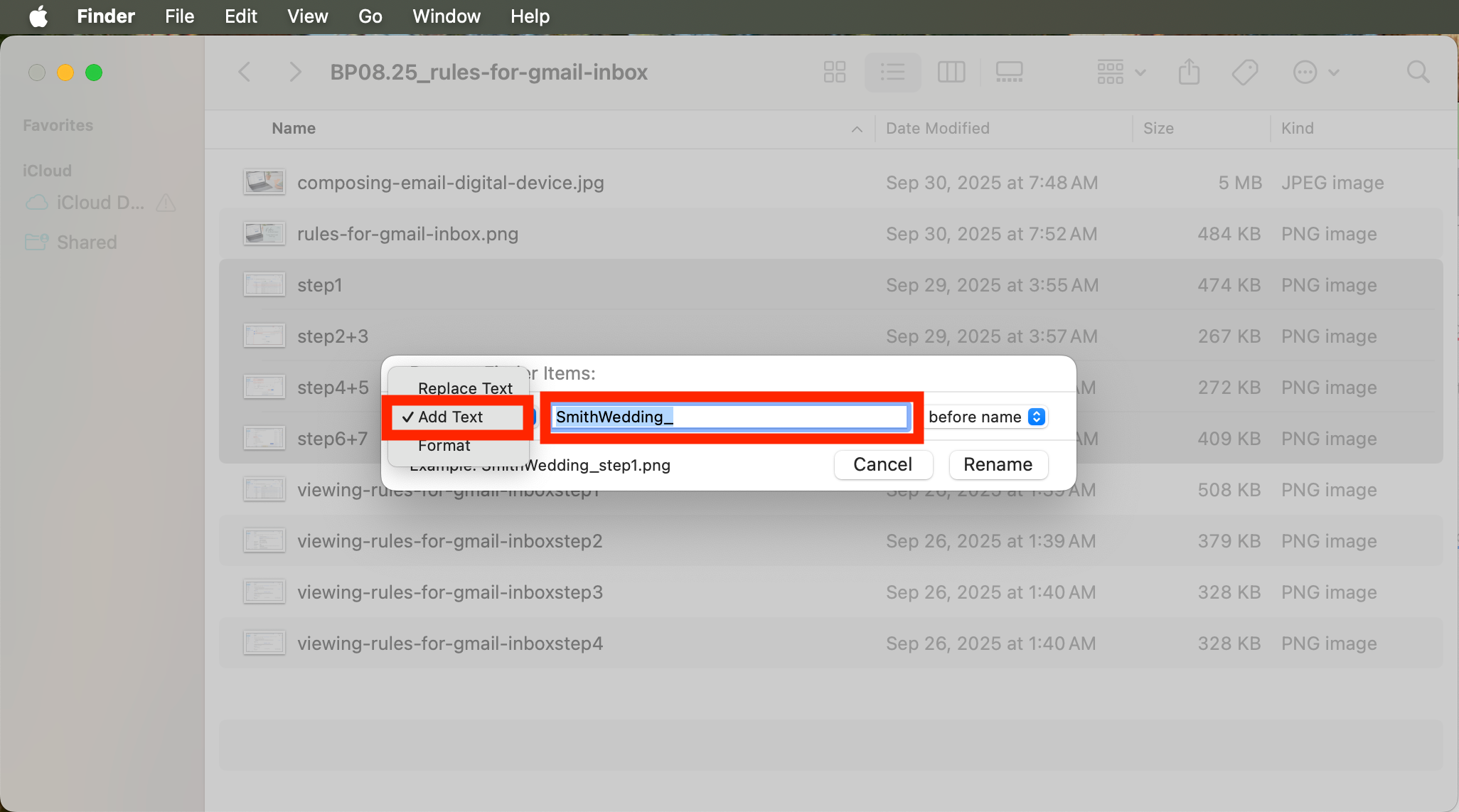
Step 3: Select “add text” and from drop down menu on the left. After that, add the text you want to show up in every single file name.
In our example, I use “rules-for-gmail-inbox-“, because the files I am renaming are all the screengrabs for my blog post: https://office-clarity.com/rules-for-gmail-inbox-7-easy-clicks-to-set-them-up/ At the bottom of the dialog box, you can see what your file name will look like:
“Example: rules-for-gmail-inbox-step1. Then click “rename”.
Step 4: All your renamed files will show up as selected and renamed.
How to Rename Multiple Files at Once: Video
Option 2: Replacing the same text in each file name with new text
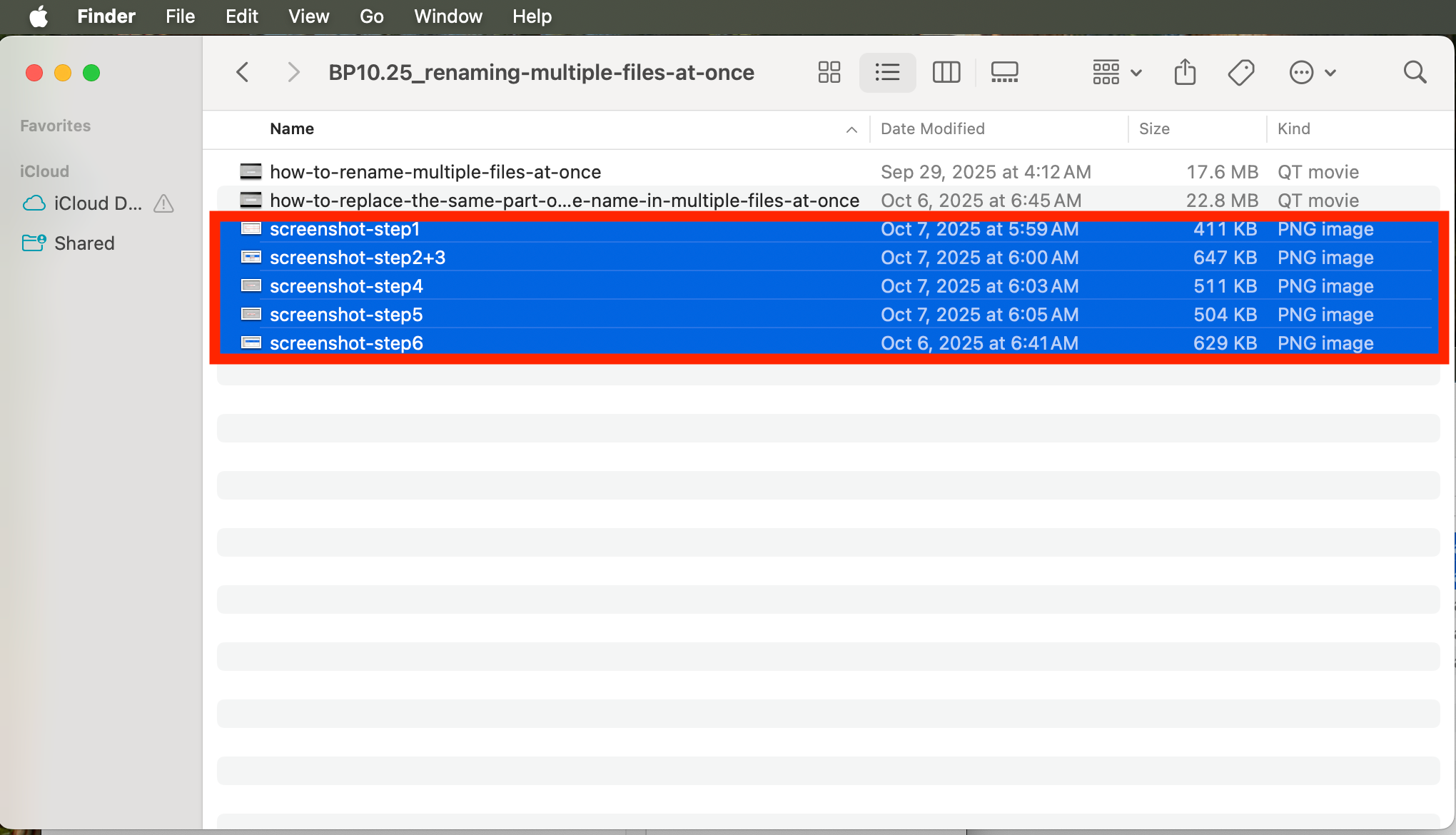
Step 1: Select all files with the same part of a file name that you would like to rename. Right click. Then click “rename”.
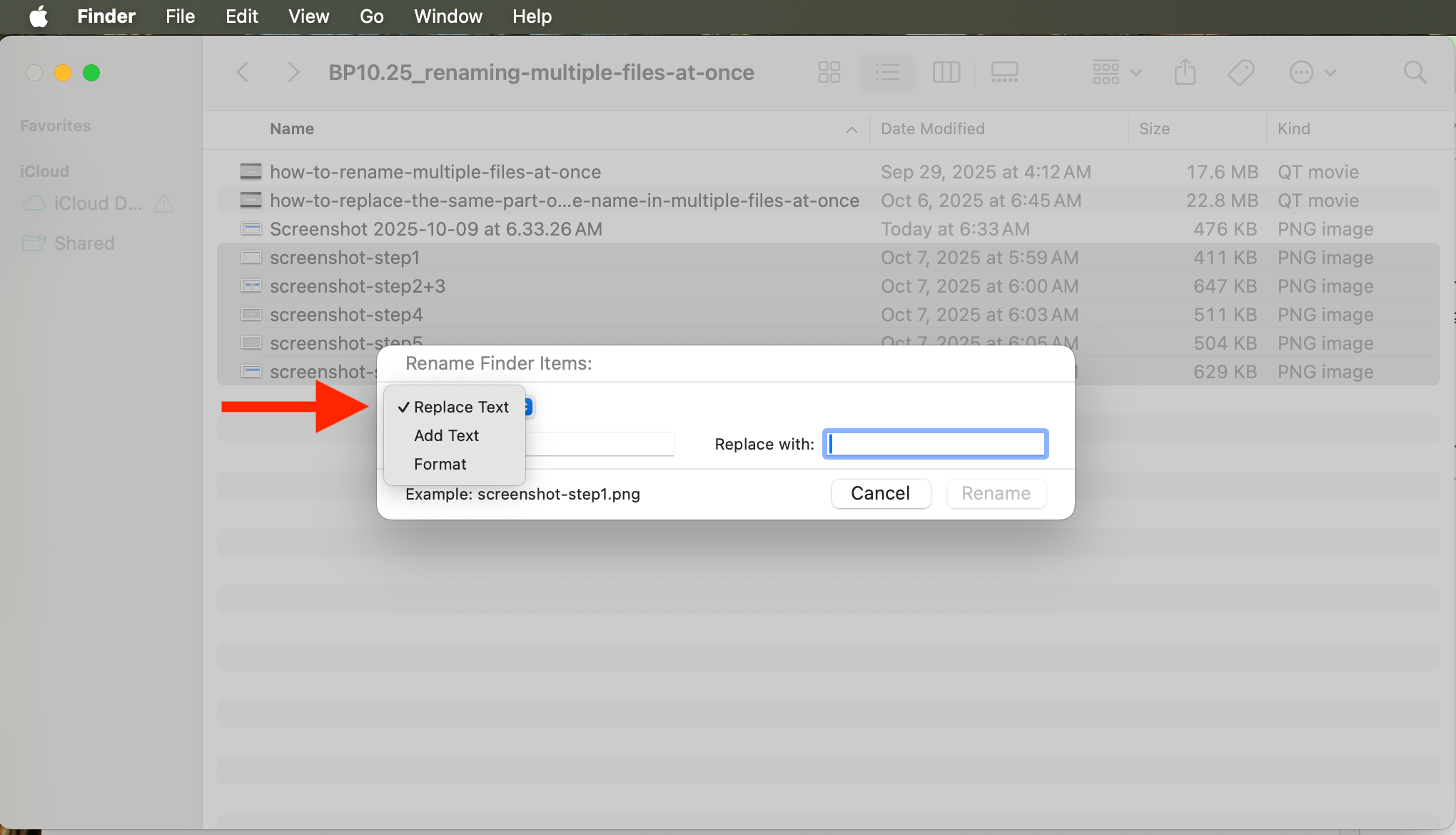
Step 2: Select “replace text” in the drop-down menu on the left.
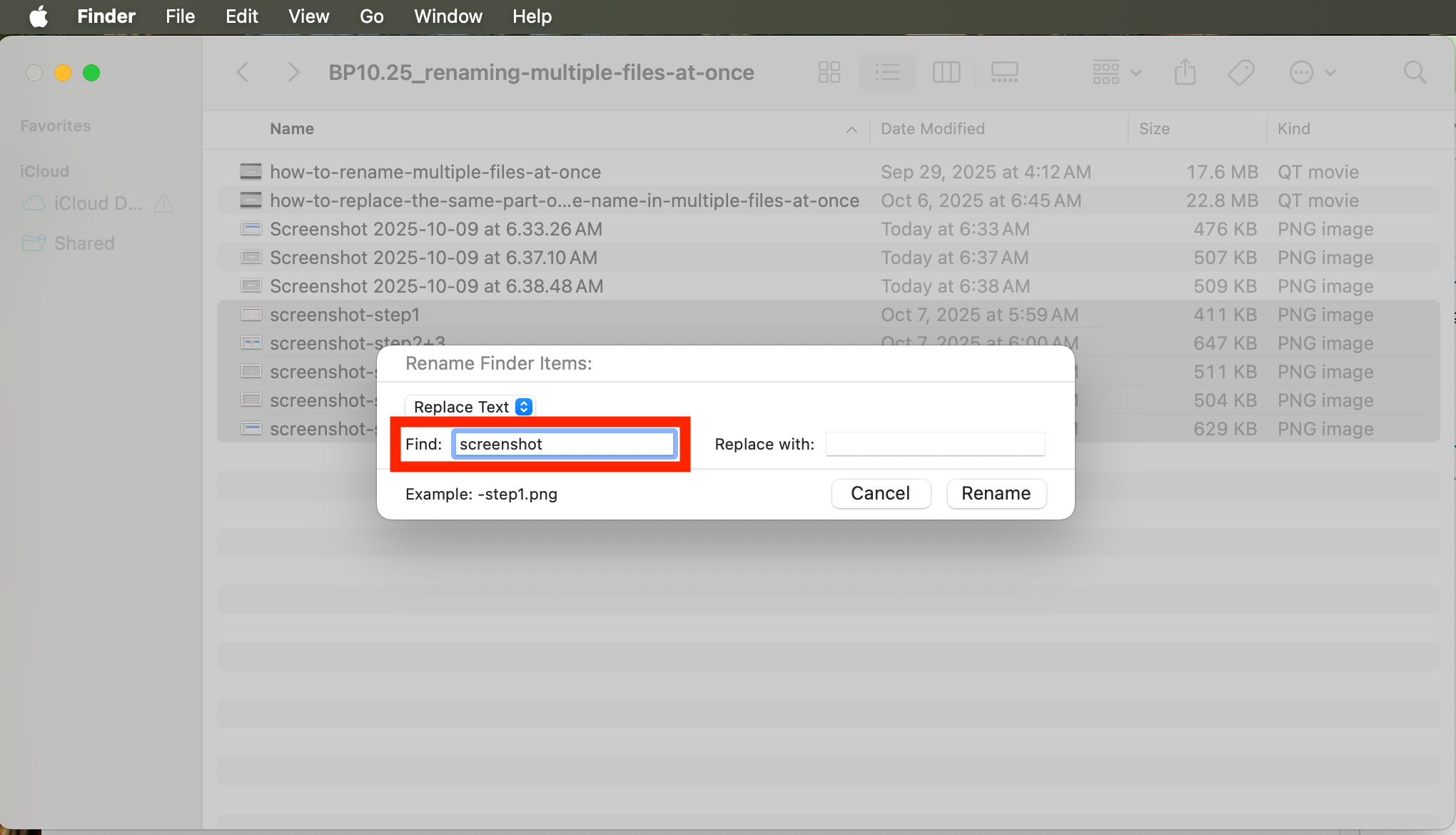
Step 3: In the “Find” field, type the words of the current file name that you would like to replace.
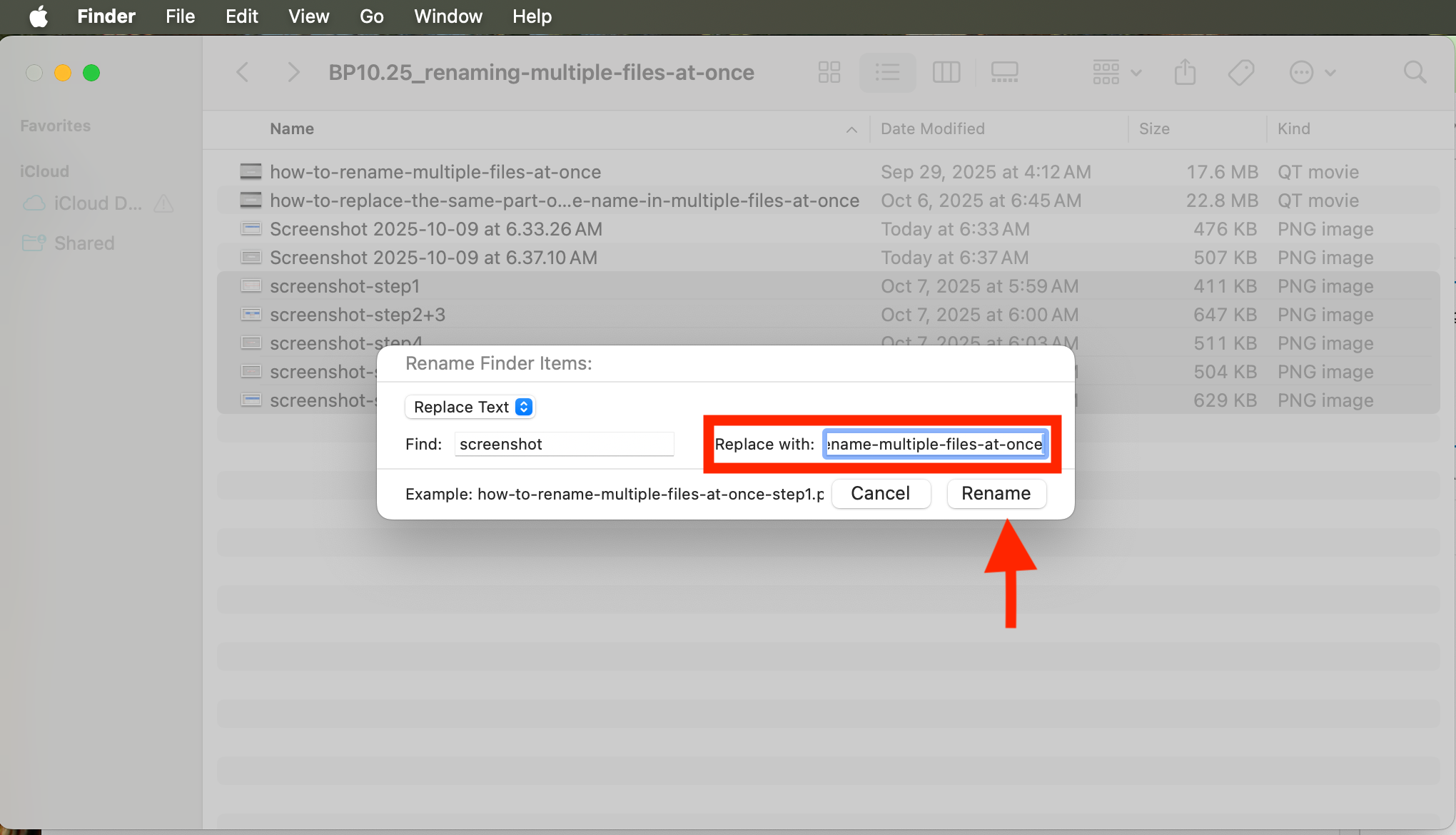
Step 4: In the “Replace with” field, type the new file name that you would like to replace the words from step 3 with. Then click “rename”.
Step 5: You’ve finished renaming multiple files at once! You can now see all your renamed files highlighted.
Renaming multiple files at once with the same text: video
Want More Tips For An Easier Office Life? Consider these Articles:
How to Set up Rules for Outlook for Guaranteed Inbox Clarity
How to be Less Stressed at the Office with This Easy Email Habit
Email Back and Forth: The Best Way to End It For Good
Just Another Day at the Office – A Simple Daily Structure
How to Write a Professional Email Out of Office Notice
3 Proven Tips for Email Management Best Practices Outlook
How to Save an Email as a Template in Outlook
Rule for Gmail Inbox? 7 Easy Clicks to Set Them Up
How to Get Back Your Focus in the Workplace
Renaming Multiple Files at Once in 7 Surprisingly Easy Steps
How to Share and Email Template in Outlook and Why You Should Do It
How to Set Up a Mail Merge on Word
The Ultimate Guide to Email Subject Line Examples for Meeting Request
How to Organize Files Mac Step by Step Guide
How to Organize Files on Mac Computers
3 Easy Steps to Saving Templates in Outlook Desktop Mac
p.s.
One More Thing:
I am sure you would not say “no” to receiving fewer emails altogether. What if I told you there is a way you might not have thought of? A method that will reduce the number of emails you receive… I personally guarantee it!
Curious and willing to learn? Click below to receive your free email template for every future email you’ll write.
Write? Yes. You’ll see.