Rules for Gmail Inbox? 7 Easy Clicks to Set Them Up
Filtering your incoming email is also called setting up “rules for Gmail inbox”. Rules for Gmail or other email programs, like Outlook, are an incredibly helpful tool to stay on top of messages. You probably receive emails in a variety of importance: From automated reminders that you immediately delete, to high-priority task assignments.
Rules for your Gmail inbox are easy to set up and can do some of the filtering for you automatically. That way, you only see in your inbox what actually requires your immediate attention.
In this blog post, I will learn how to:
- Create a rule in Gmail for automatically deleting an email
- How to see all the rules (filters) you have set up in Gmail.
Free yourself from email stress!
Reduce the number of emails you get by changing the structure of the emails you send.
Learn how with this simple one-pager.

How to Make Rules for Gmail Inbox? Step-by-Step Guide.
Note: Rules for email in Gmail are called “filters”. In the following, I will use the terms “filter” and “rule” for the same thing. This is different from rules for emails in Outlook. Outlook only uses the term “rule”.
Step 1
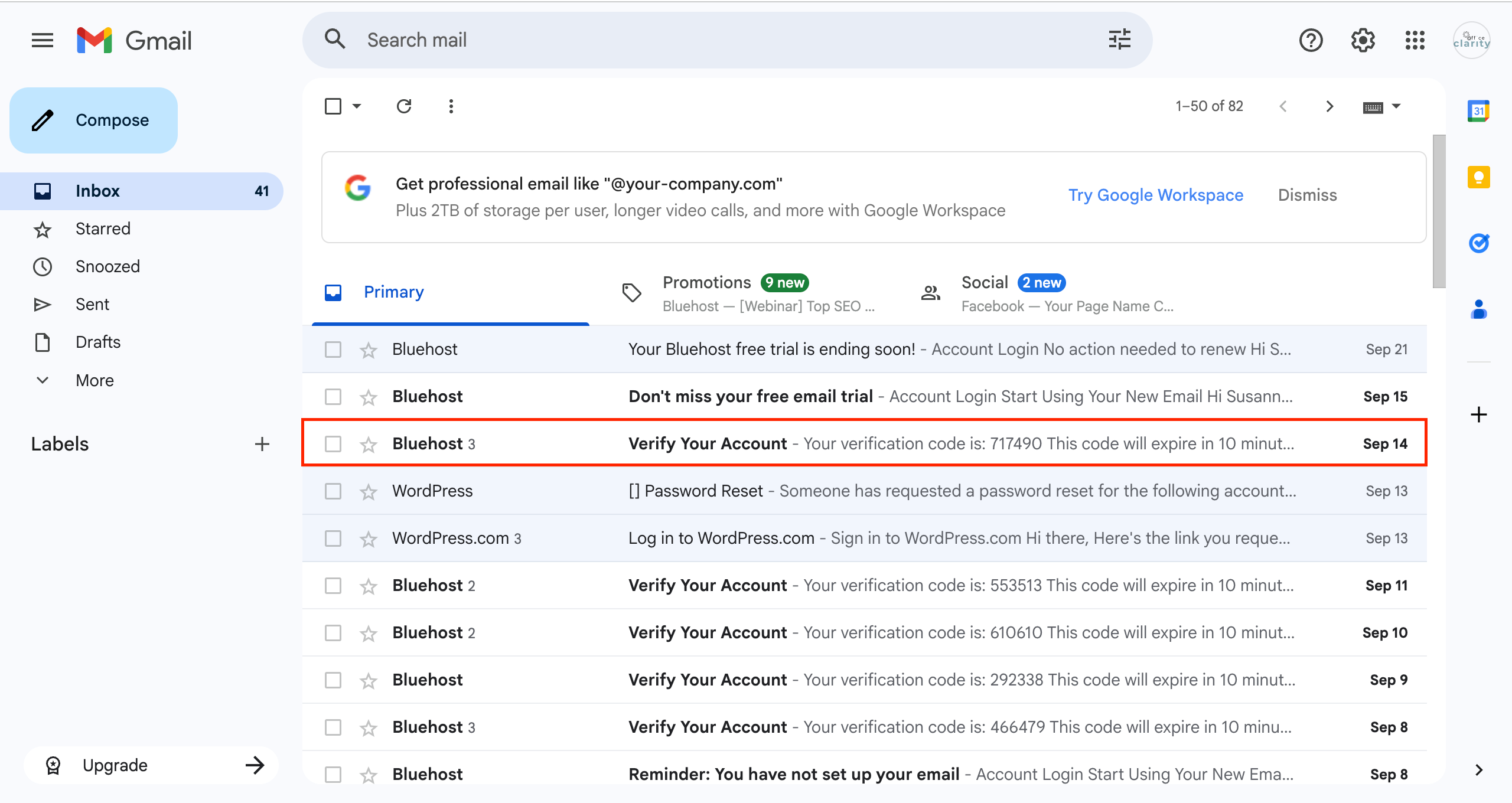
Click on an email that you want to automatically delete.
Step 2 + 3
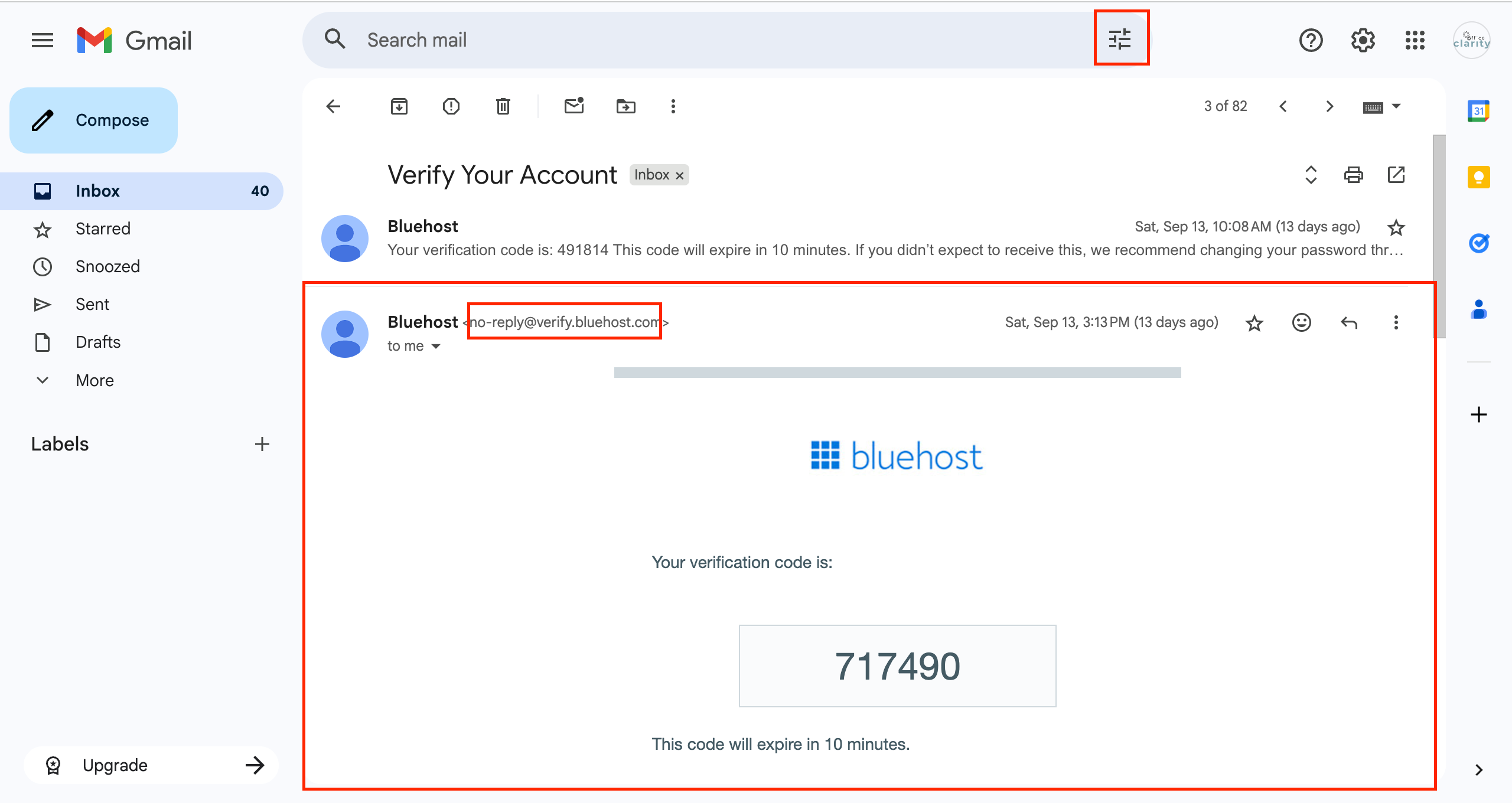
Copy the sender email address.
Then click on the filter icon next to the “search email” bar.
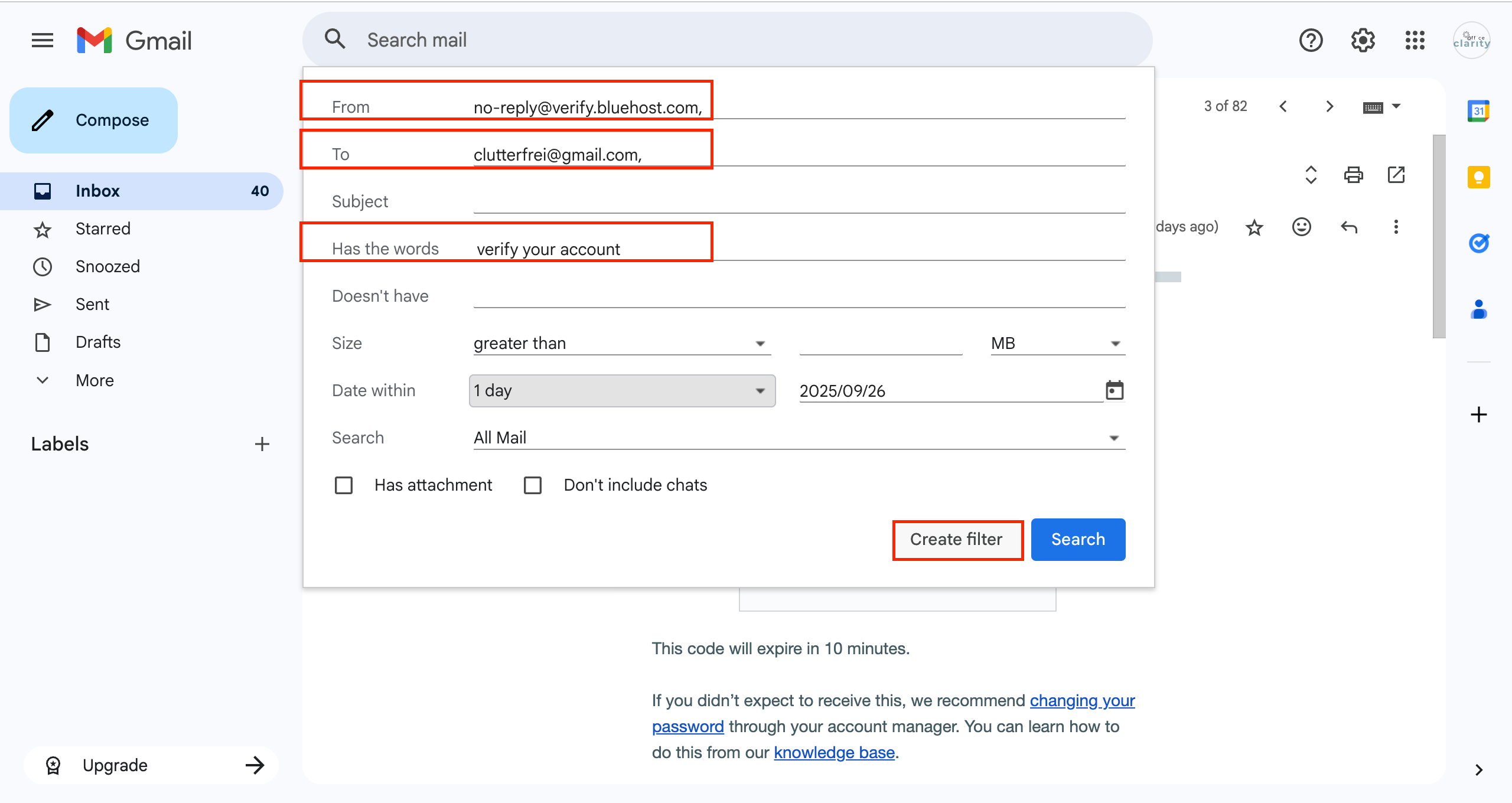
Step 4 + 5
Fill out the dialog box that opens up, including the following fields:
- From
- To
- Has the words
Then click “Create Filter”.
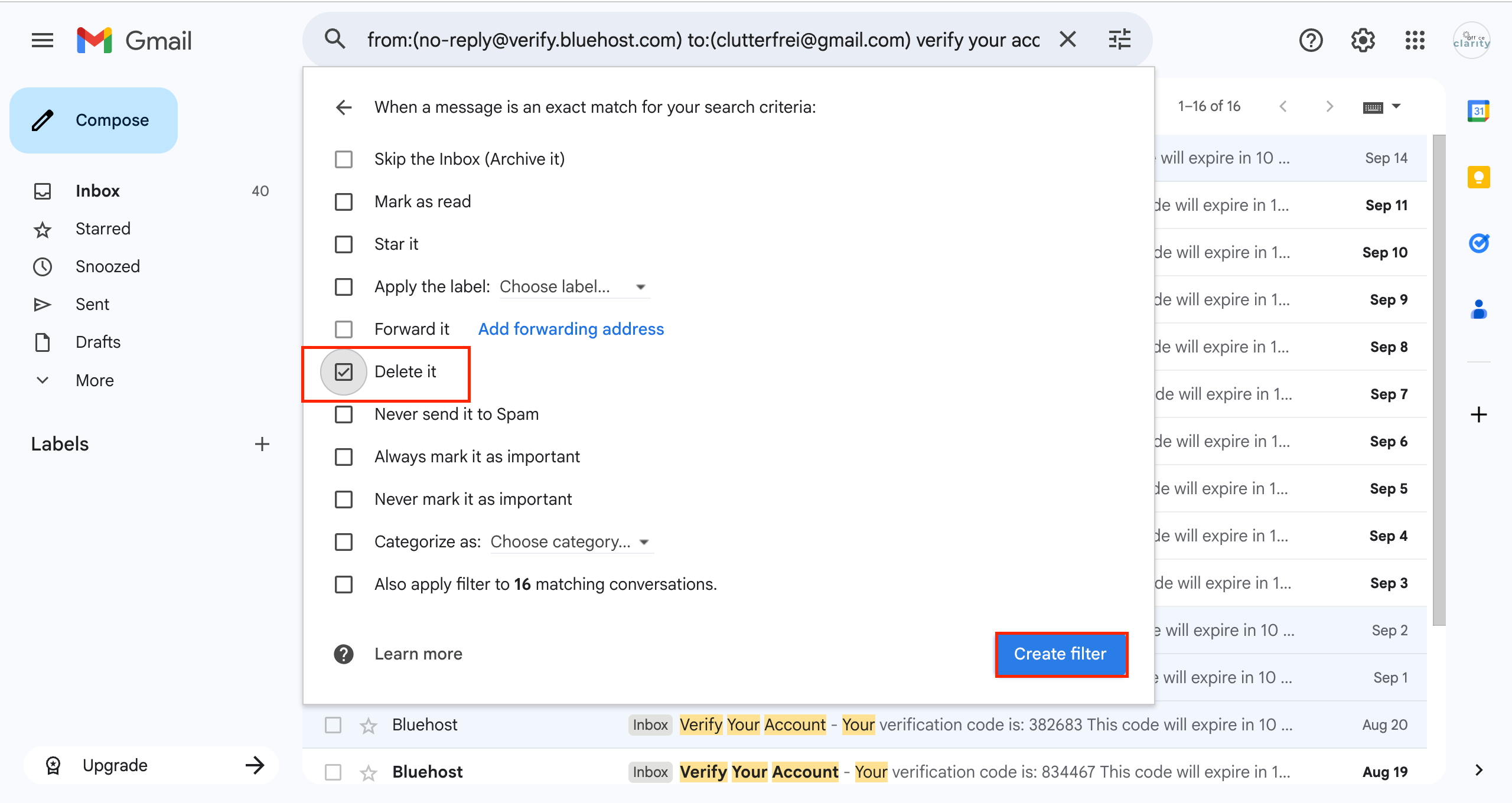
Step 6 + 7
Click on one of the options in the filter dialog box. Because we are setting up a rule to delete the email, we will click “Delete it”.
Then click “Create filter”.
How to Find all Your Filters in Gmail
Once in a while you may want to check all the filters you have set up. That ensures you keep an overview over all the rules set up for your Gmail inbox. The steps below show you how to get to the interface where you can see the list of all current filters (rules) in your Gmail email account.
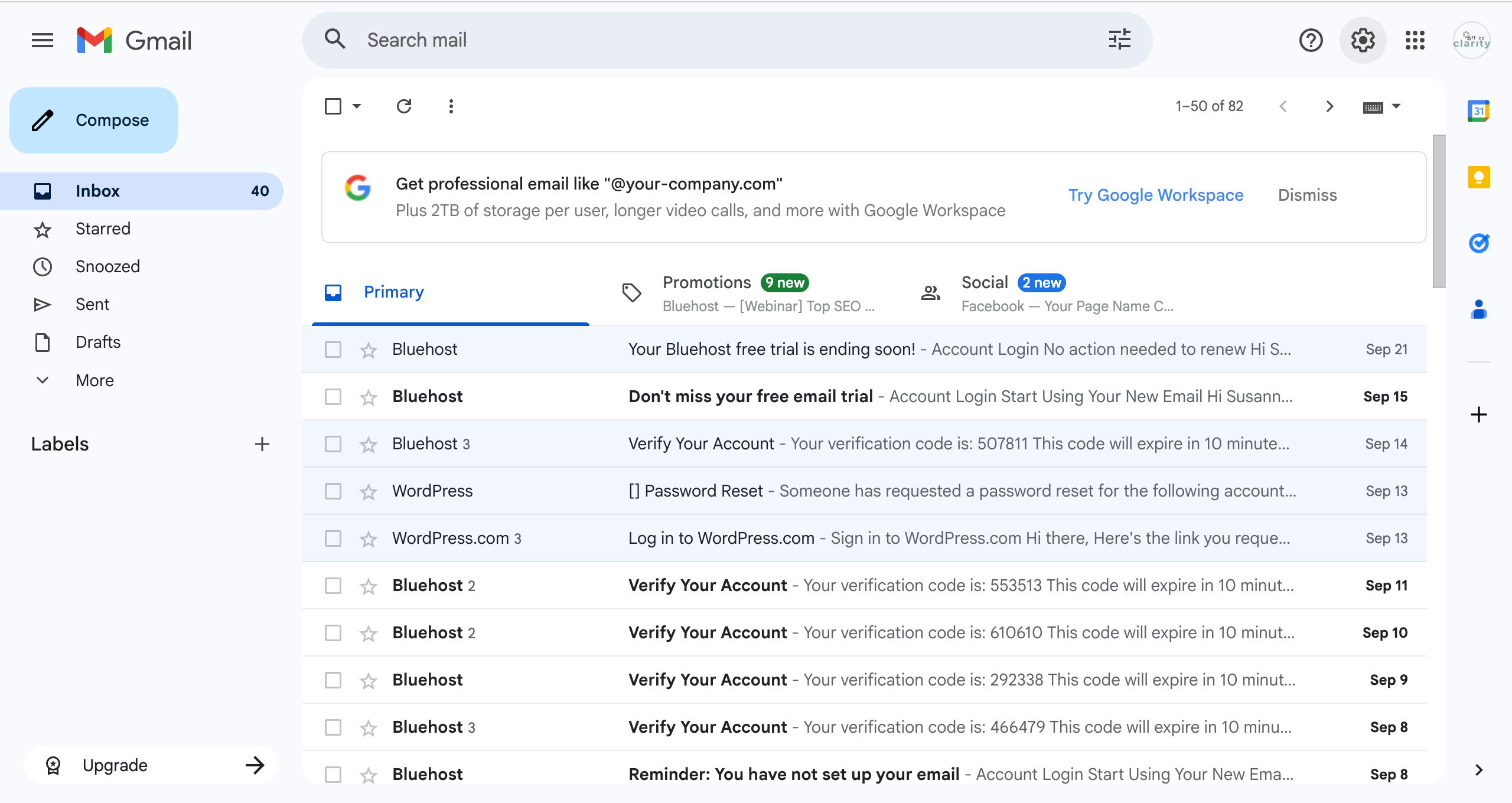
Step 1
Click the gear icon in the top right corner.
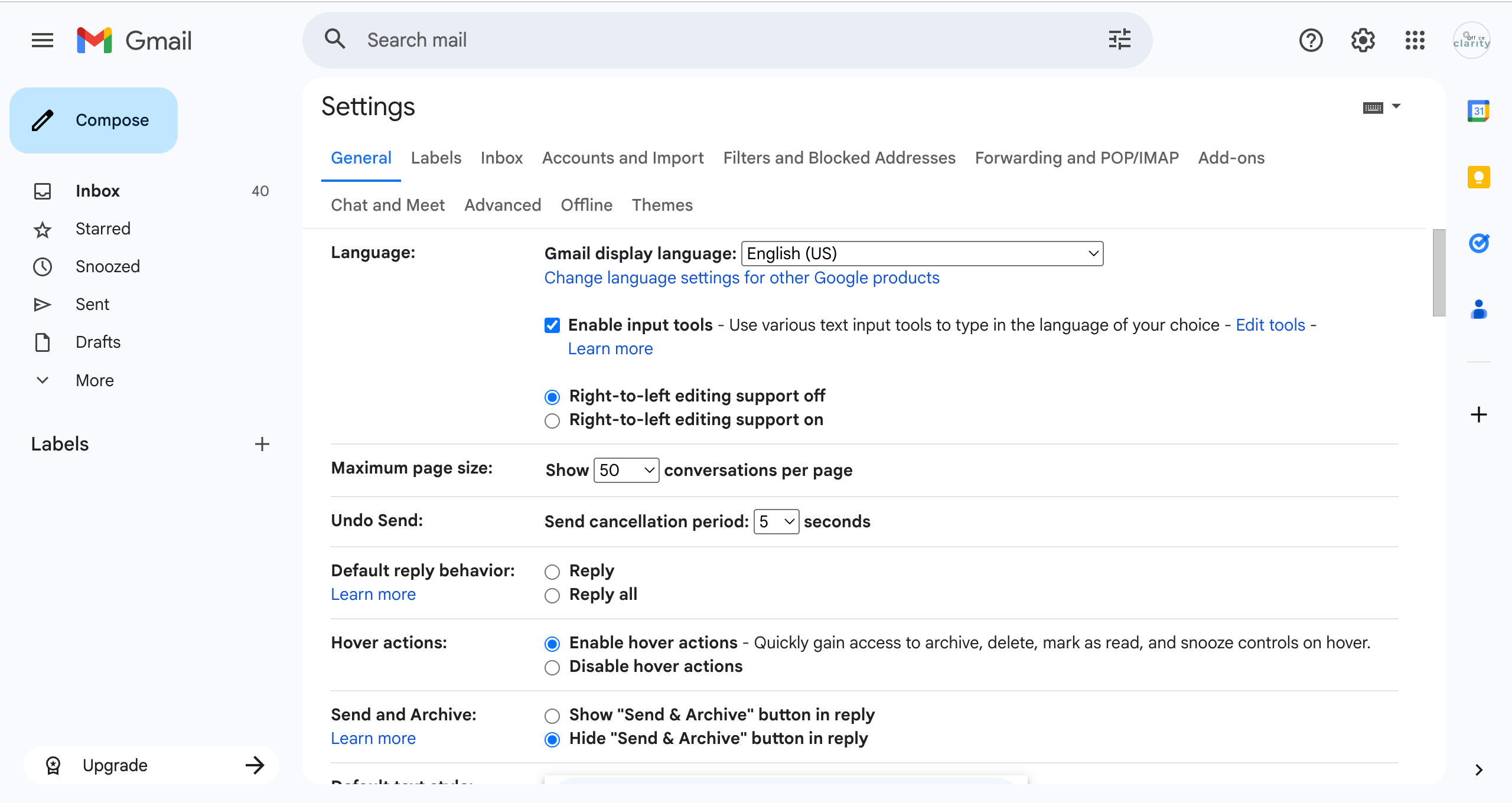
Step 2
Click “Filters and Blocked Addresses” in the settings interface that opens up.
Step 3
See all filters you have currently set up under “The following filters are applied to all incoming mail:”
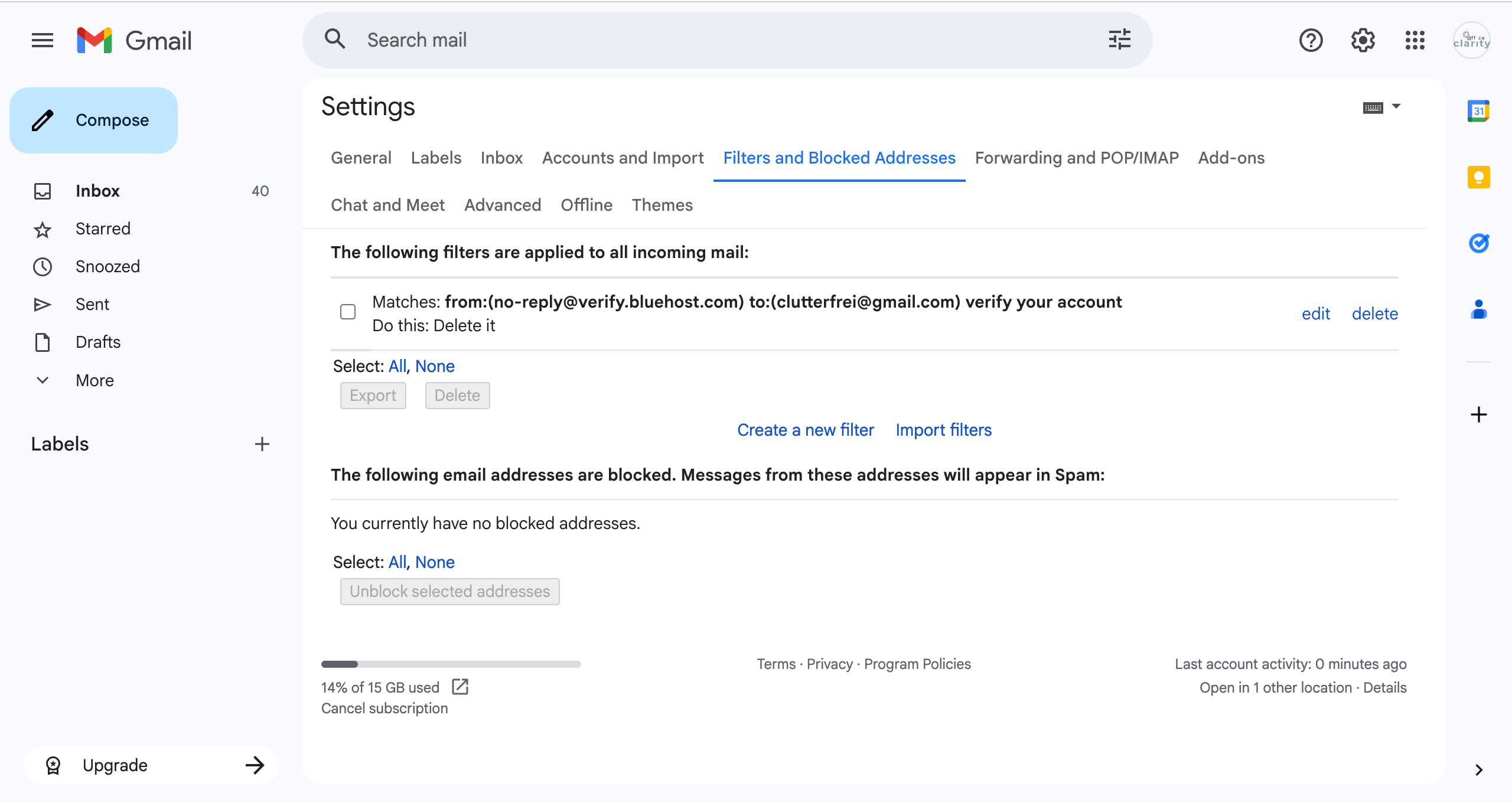
Step 4
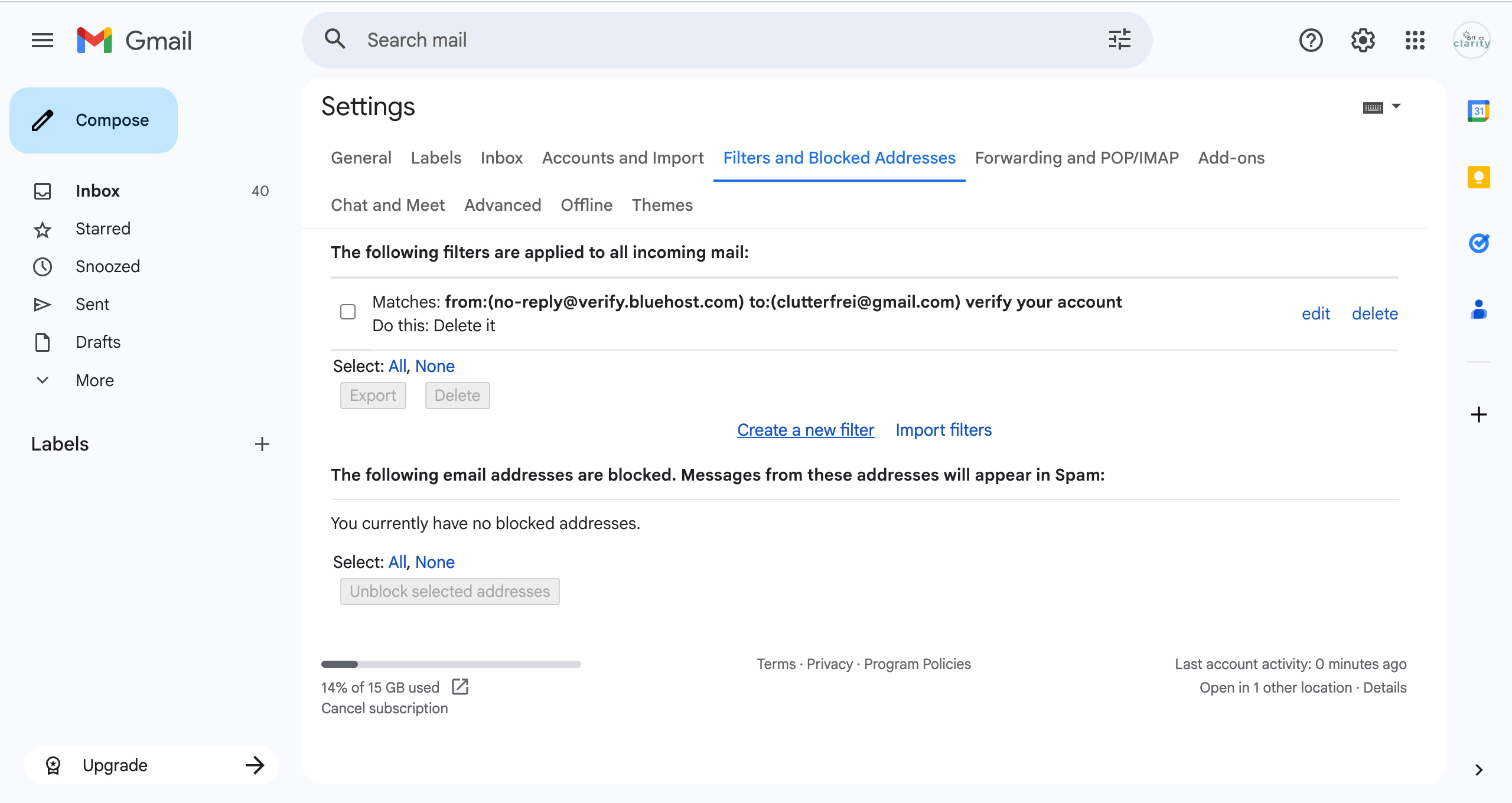
You can add an additional filter here, by clicking “Create a new filter”.
See Some Examples of How to Use Rules in Gmail on www.katheats.com
Kath from www.katheats.com gives some examples of rules/filters she uses to keep her email organized. Read her article here: https://www.katheats.com/how-to-create-rules-in-gmail. What I learned from Kath that I didn’t know about is, for example, how she uses groups in Gmail.
How Email Filters Helped Me Reduce Stress at Work
I receive a lot of emails. Attending to email is one of the tasks as an Office Manager that I try to automate as much as possible, so I can use my time and brain for more in-depth projects and strategic thinking.
I use Outlook for my professional email. And I can tell you that setting up filters aka rules for my email inbox has changed. my. life.
I highly encourage you to try it out. Only receive what you really need to pay attention to. Let all the reminders, alerts, newsletters – basically all emails that are predictable – go into folders. Declutter your inbox and then, when you receive an email, you know it’s important. Another positive effect is that you won’t miss any emails that are important, because now the email is not buried, but stands out.
Let me know in the comments how the filters are working for you!
Want More Tips For An Easier Office Life? Consider these Articles:
How to Set up Rules for Outlook for Guaranteed Inbox Clarity
How to be Less Stressed at the Office with This Easy Email Habit
Email Back and Forth: The Best Way to End It For Good
Just Another Day at the Office – A Simple Daily Structure
How to Write a Professional Email Out of Office Notice
3 Proven Tips for Email Management Best Practices Outlook
How to Save an Email as a Template in Outlook
Rule for Gmail Inbox? 7 Easy Clicks to Set Them Up
How to Get Back Your Focus in the Workplace
Renaming Multiple Files at Once in 7 Surprisingly Easy Steps
How to Share and Email Template in Outlook and Why You Should Do It
How to Set Up a Mail Merge on Word
The Ultimate Guide to Email Subject Line Examples for Meeting Request
How to Organize Files Mac Step by Step Guide
How to Organize Files on Mac Computers
3 Easy Steps to Saving Templates in Outlook Desktop Mac
p.s.
One More Thing:
I am sure you would not say “no” to receiving fewer emails altogether. What if I told you there is a way you might not have thought of? A method that will reduce the number of emails you receive… I personally guarantee it!
Curious and willing to learn? Click below to receive your free email template for every future email you’ll write.
Write? Yes. You’ll see.